To make YouTube captions easier to read on a computer, first turn on the CC button when it is available, then open Settings → Subtitles/CC → Options. That menu lets you adjust text size, colour and background. Check availability first: changing the appearance cannot create a caption track that the video does not offer.
This guide separates three different tasks: displaying available captions, changing their appearance and restoring the original format. It covers the YouTube player on a computer. A phone or TV has its own device instructions and may use a different menu.
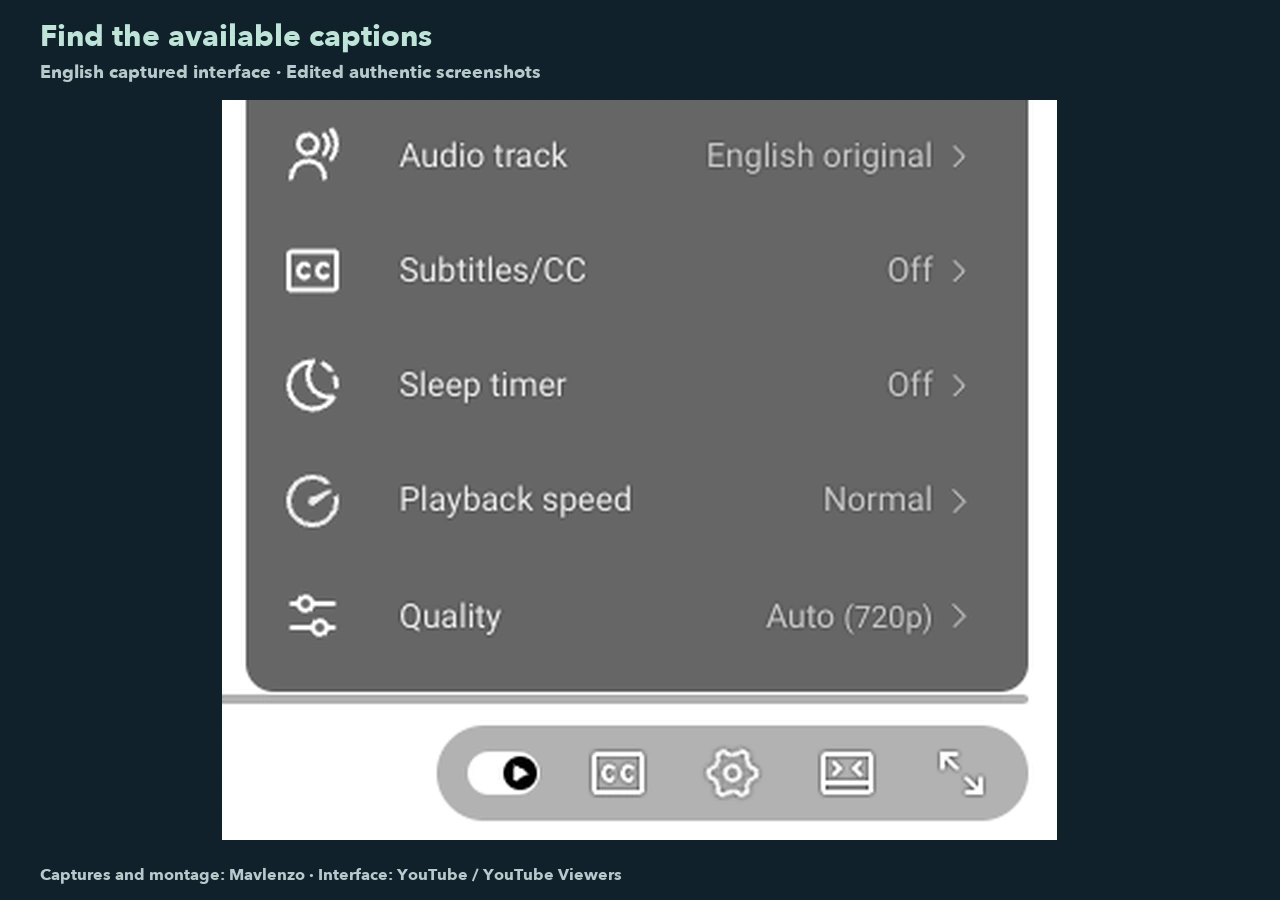
1. Check for captions before changing their appearance
YouTube’s official computer instructions say that the CC control appears at the bottom right of the player when captions are available. Click it to display them; clicking it again turns them off.
- Open the video you want to follow and locate its player controls.
- Look for the captions icon or CC label. Turn it on if it is present.
- Read a short section to check that text is appearing. Make this basic check before changing several settings.
If there is no CC control, do not start by changing fonts. The documented procedure applies to videos that have captions. Another video on the same site may offer different options, so comparing two videos does not establish that the first player is broken.
2. Make the text larger and easier to distinguish
Follow the documented appearance menu: Settings → Subtitles/CC → Options. In a French interface, the first two menus are labelled Paramètres and Sous-titres. These equivalents help you match the controls to the language your interface uses.
YouTube lists controls for the font, text colour, opacity and size, alongside background, window and character-edge settings. Start with the difficulty you can see, rather than applying a combination described as ideal for everyone.
| What you notice | Setting to examine | Useful check |
|---|---|---|
| Text looks too small | Font size | Read a sentence without hiding an important control |
| Text blends into the picture | Background colour and opacity | Compare a light scene with a dark scene |
| Several changes are hard to assess | Reset | Return to the original format, then change one item |
This table is a practical comparison method, not an accessibility measurement or a claim that one size suits every viewer. Keep a setting only if it helps you read the information while still seeing the details of the demonstration.
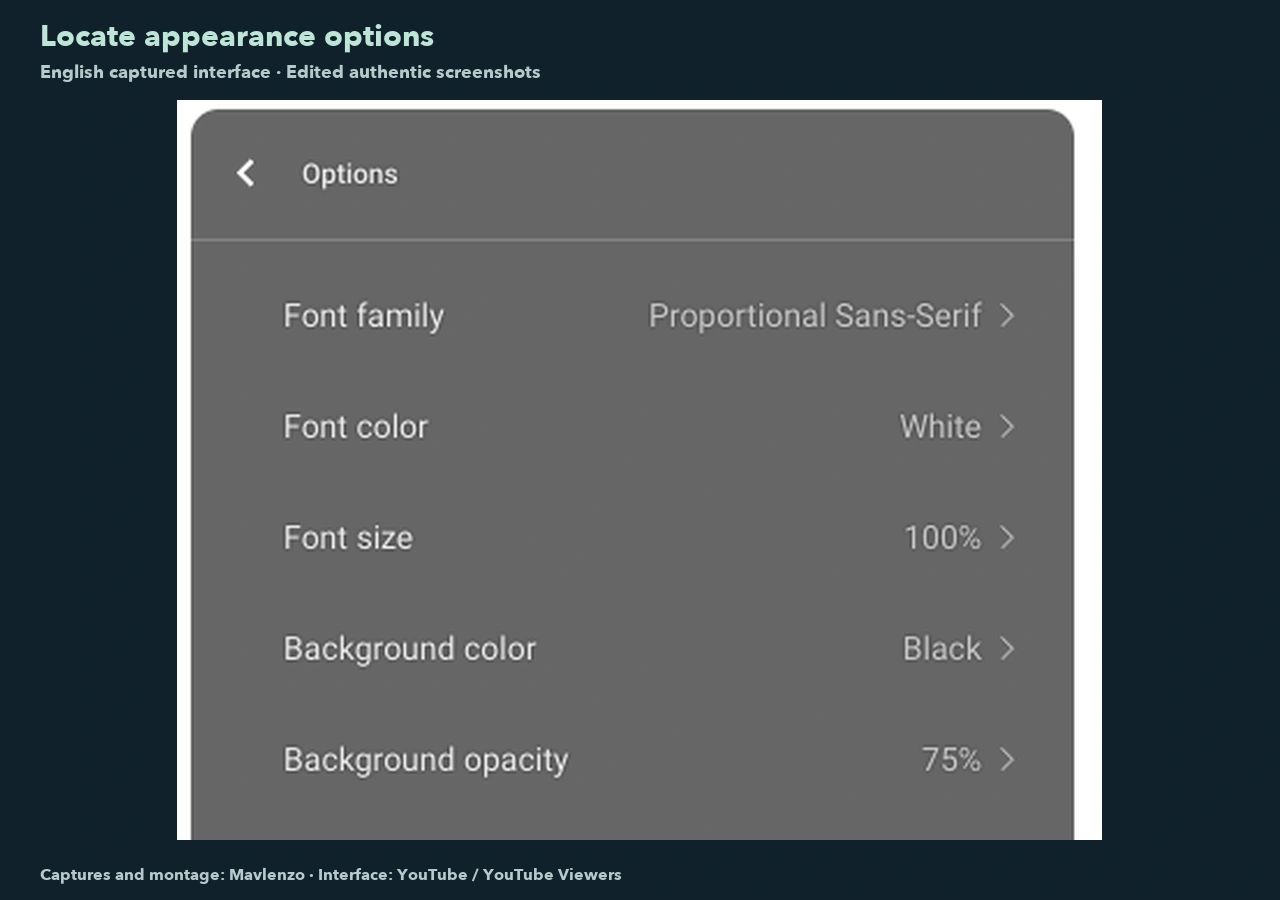
Find the controls, then repeat the steps
The accompanying media shows the player steps. Locate the captions control and the appearance menu, then repeat the actions in the video you want to watch. One interface example does not establish which languages are available in every other video.
Video transcript
- Open Settings, then Subtitles/CC. The captured player is in English; CC is offered when captions are available.
- French is selected here. Available caption languages depend on the video; these are separate from audio-track controls.
- In Options, examine text and background settings. Change one item at a time to compare the result.
- Font size lists the offered sizes. Reset restores formatting; its click is not shown in this screenshot montage.
3. Restore the starting format
YouTube says appearance choices remain the default until you change them again or select Reset. That control restores caption formatting. It should not be described as a repair for audio, a network connection or a subscription.
For a useful comparison, note the setting you change, examine the result and go back if necessary. Changing one item at a time helps you distinguish the effect of text size from the effect of the background or colour.
Understand the limits
- Appearance and translation are different tasks. This guide covers displaying and styling captions. It does not promise automatic translation or a French track in every video.
- Text is not a substitute for checking an instruction. For an important technical demonstration, compare written information with the visible action rather than assuming that every caption is accurate.
- A computer and TV may use different menus. Consult YouTube Help and select your device’s instructions before transferring this procedure to another screen.
Method and sources
The documentary instructions use the English and French versions of YouTube’s official computer help, read on 24 October 2026 (UTC). A source update date that was not displayed has not been inferred.
The controls were operated in the Codex in-app browser on a Mac running macOS 27.0.1 on 24 October 2026 (UTC), using the public video How to adjust your caption settings on YouTube, by YouTube Viewers, paused around 0:04. The interface remains in English; the French caption track was selected for this example. Images crop the actual observed menus. The 32-second video is an edited montage of these still captures with English explanations, with no voice-over or continuous recording. The reset action was observed separately and is not filmed in the montage. No TV or mobile device was tested, and no Canadian test location is claimed.
For other topics, explore our practical guides. If playback is stopping rather than the text being difficult to read, use the playback troubleshooting checklist; it addresses a different task. These YouTube settings are independent of the IPTV subscriptions sold by Mavlenzo.