To cancel Crave in Canada, first identify who bills you, then follow that seller’s cancellation process through to confirmation. The device you use to watch Crave does not, by itself, identify the seller. Record the displayed access end date afterwards: it may differ from the day you submit your request.
This guide organizes the procedures documented by Crave, Bell and Google Play. It adds a decision map and a worksheet; we have not opened a customer account or performed a cancellation. Sources were checked on October 30, 2026. Menu wording can change.
1. Find the seller before looking for a button
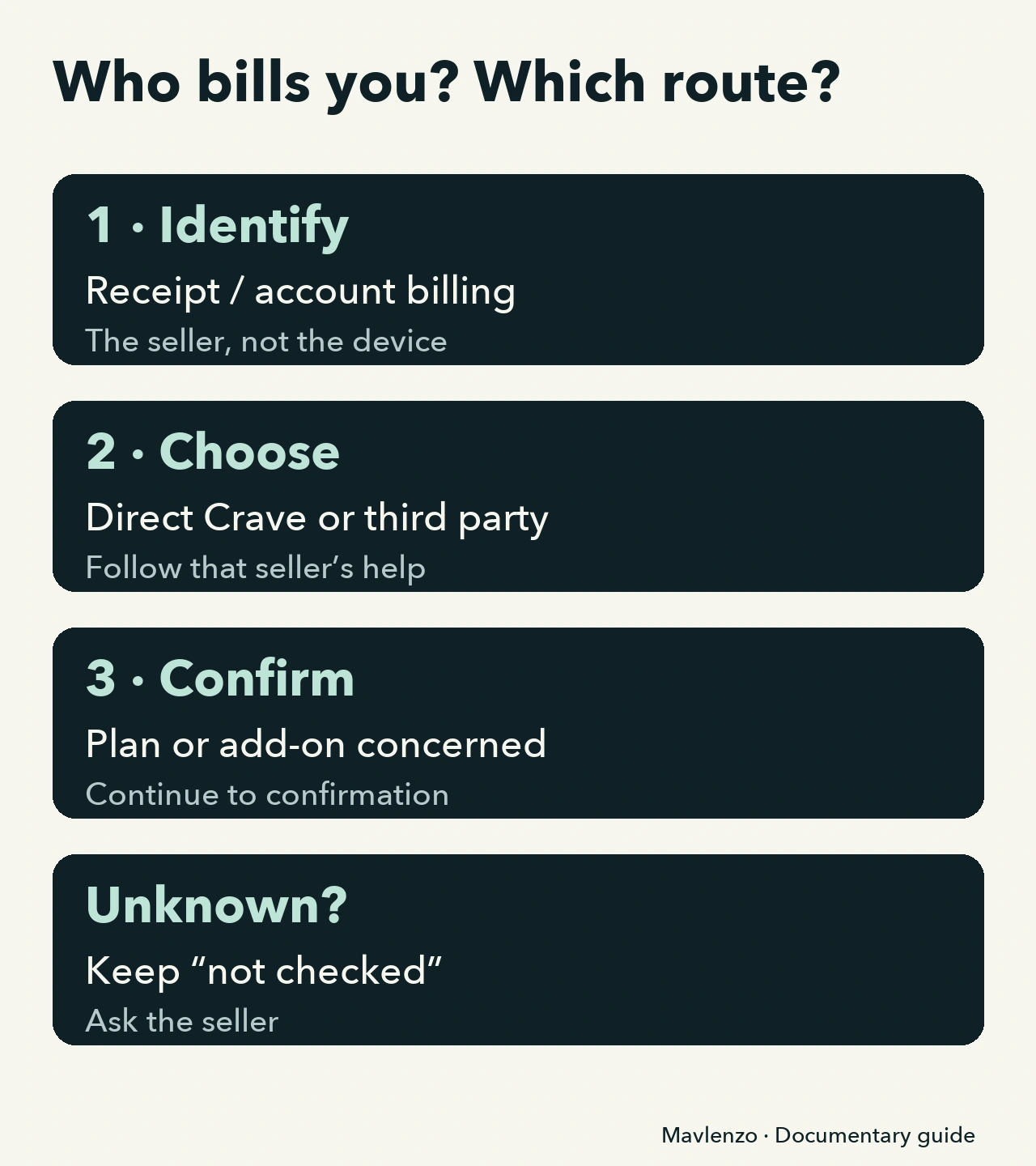
Check your subscription receipt or your account’s billing information. Record the seller’s name and the offer concerned. If you cannot establish them, keep the status “not checked” and ask the likely seller to confirm where the subscription was purchased.
This helps you avoid choosing the wrong route: watching on an iPhone does not necessarily mean that Apple bills you. Compare the information for your own subscription rather than relying on the name of your television, phone or app.
2. Follow the identified seller’s route
Crave bills your subscription directly
Crave’s help describes signing in at crave.ca, opening the account area, choosing subscriptions and cancelling the plan, then continuing to the confirmation page. Its English menu labels are Account → Subscriptions → Cancel Plan.
Open Crave’s official cancellation help. We are describing the documented route, not claiming to have completed it in a customer account.
Apple, Google Play, Roku, Amazon or another seller bills you
Crave directs you to cancel through the provider that sells the subscription. Its help distinguishes Apple, Google Play, Roku, Amazon Prime Video Channels, Disney+, Bell Streaming, television providers and mobility providers. Identify the exact seller first; do not transfer one platform’s menu to another.
The official Crave provider list describes the corresponding route. If Google Play bills you, also use its subscription cancellation help, with the Google Account that owns the subscription.
You manage this subscription in MyBell
For subscriptions managed in MyBell, Bell documents opening the services and subscriptions area, managing subscriptions, selecting the offer to cancel and submitting the final confirmation. Review the cancellation details before sending the request.
Use the Abonnement section of Bell’s cancellation help in French. Telephone, Internet and equipment-return conditions elsewhere on that page do not automatically become the rules for your Crave subscription. The English description here summarizes the French source; it does not certify current English interface labels.
3. Check the target: plan, add-on or account
An add-on and the main plan are different targets. For direct billing, Crave says that cancelling an add-on leaves the main Crave subscription billable; cancelling the main plan also cancels its associated add-ons. Read the exact name of what you are confirming.
Deleting an app is not a cancellation method: Google Play explicitly states this for its subscriptions. Being able to sign in does not prove that renewal remains active either. Bell explains that cancelling Crave through Bell does not delete the Crave account, which can still be accessed with the existing credentials.
Two fictional situations to choose the next check:
- Only an add-on disappears. Sam wanted to stop Crave completely, but the confirmation names only an add-on. Sam returns to the identified seller to check the main plan.
- Access still works. Alex has a cancellation confirmation and a later access end date. Alex compares those records rather than deciding the cancellation failed simply because the app opens.
A decision animation
The video explains the route from seller to confirmation, then the date to keep. These are original diagrams, without a customer interface, a real cancellation or personal information. Turn on captions; a transcript is also provided.
Video transcript
- Start by identifying who bills you for Crave. This diagram is not a real cancellation.
- Read your receipt or billing information. The phone you use does not necessarily identify the seller.
- Direct Crave billing and a third-party seller use different routes. Identify your own subscription.
- If the seller is unknown, keep “not checked” and ask for confirmation before choosing a route.
- Use the identified seller’s official process. Continue the steps through to confirmation.
- Simply opening a cancellation page does not confirm that a request was submitted.
- Check whether the confirmation concerns the main Crave plan or only an add-on.
- For direct Crave billing, cancelling an add-on leaves the plan billable. Check the exact item named.
- Google Play says that deleting an app does not cancel its subscription. Use subscription management.
- An accessible account does not prove active renewal. Bell distinguishes the account from the cancelled Crave subscription.
- Keep the confirmation and displayed access end date. Do not assume that it is the end of the month.
- A missing date or confirmation still needs checking with the seller. Keep your note private.
- Changed providers? Crave warns that an older direct subscription does not cancel automatically.
- Check each subscription concerned separately. We have not cancelled an account or certified that a payment stopped.
4. Keep a confirmation worksheet, not an assumption
Crave says to cancel before renewal and that direct access continues until the paid period ends. Bell also describes access until the renewal date for the subscription concerned. Record the date displayed by your seller; do not substitute “the end of the month” or the day of your request.
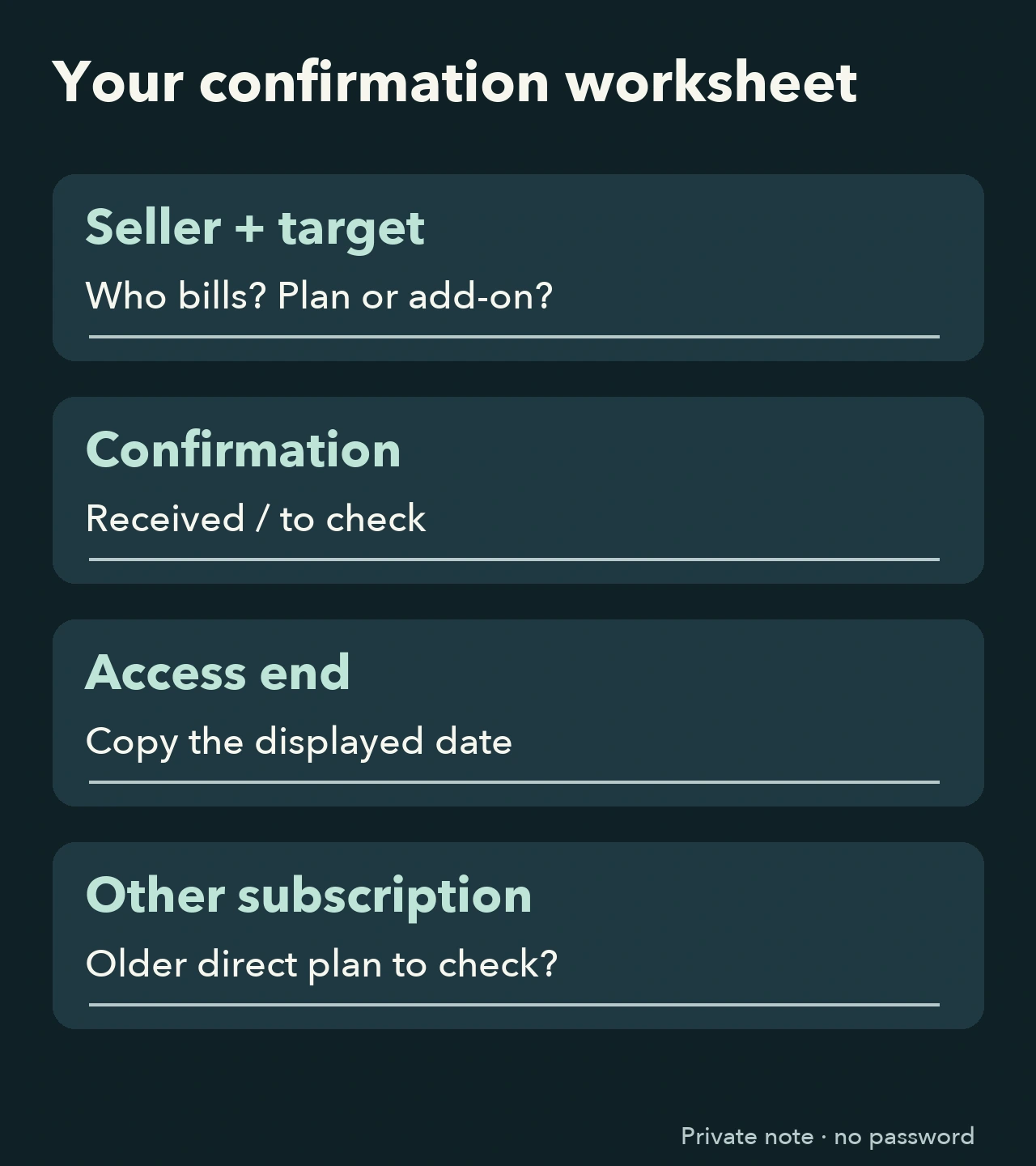
Copy this worksheet into a private note. It organizes your checks without sending Mavlenzo a password, card number or unredacted receipt.
- Seller that bills me: ______ / not checked.
- Subscription or add-on concerned: ______.
- Renewal shown before the request: ______.
- Request submitted on: ______.
- Confirmation received: yes / no / to check.
- Displayed access end date: ______ / not shown.
- Another Crave subscription to check: ______ / none found / not checked.
- Question for the seller: ______.
Crave warns that an existing direct subscription does not automatically disappear when you switch to another provider. If you changed sellers, check that older subscription separately. Do not create a new subscription to investigate a cancellation.
Common questions
I have no confirmation. Am I finished?
Keep the status “to check”. Return to the same subscription with the identified seller and check its status or request confirmation. Our worksheet does not certify that a charge has stopped.
Can I delete my account instead?
Do not confuse account management with stopping renewal. The Bell example above specifically shows that an account can remain accessible after cancellation. Use your seller’s documented subscription route.
Does cancelling automatically produce a refund?
This guide establishes no automatic refund or entitlement. A refund request is a separate question for the seller, under the conditions that apply to your purchase.
Sources, method and a useful next task
We read Crave’s English help, Bell’s French subscription section and Google Play’s French and English help. The specific French Crave article was not verified; the Apple help pages requested returned an access error. They therefore support no additional menus in this guide. The note-taking method and examples are our editorial organization, not cancellation tests.
For a different need, see our Canadian Crave plan comparison or our streaming guides. These pages do not replace confirmation from the seller that bills you.