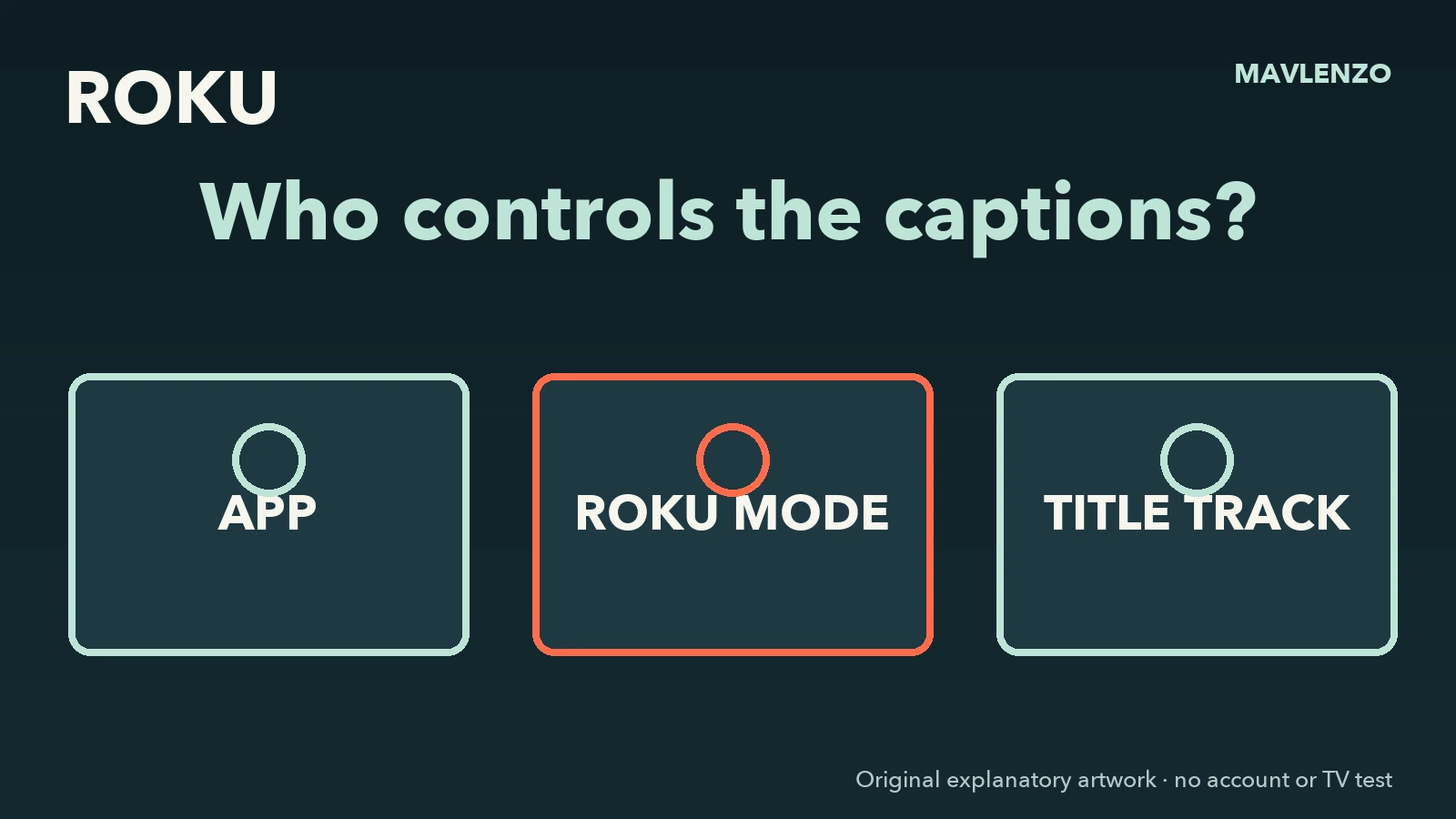
Missing captions on Roku do not automatically mean the television is configured incorrectly. First identify who controls them: Roku or the app. Then check the title and selected mode. Changing every setting at once makes the result harder to diagnose.
Record what already works
Before changing a menu, make a short note: app, title, wanted language and observed behaviour. In a fictional example, captions work in one app but not another. That difference gives you a more useful starting point than “Roku is broken.”
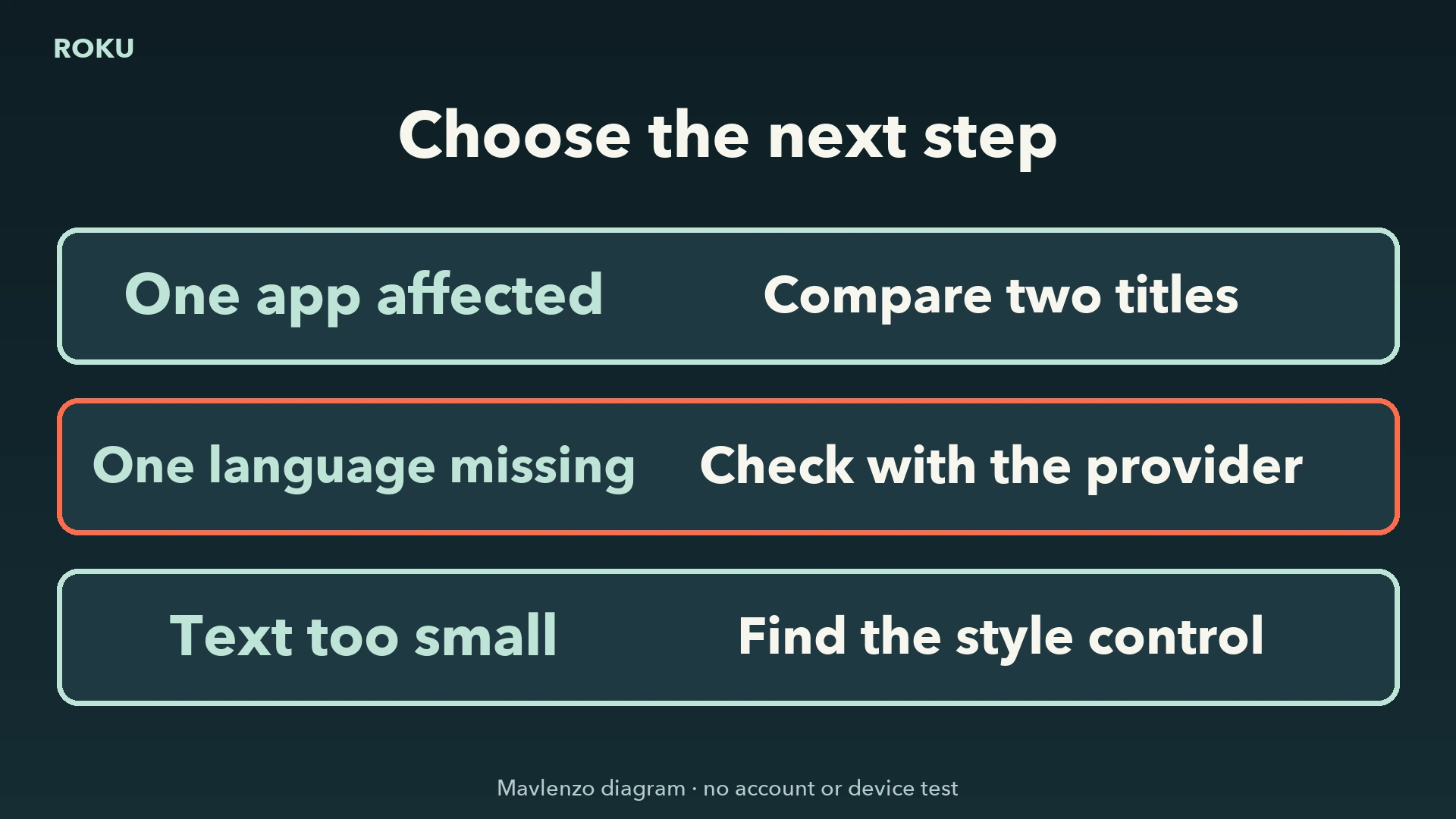
Next, try another title in the same app. Keep the two results separate. If you want French captions, note whether another language is offered. This small record helps distinguish a missing track from a display problem.
Find the right setting level
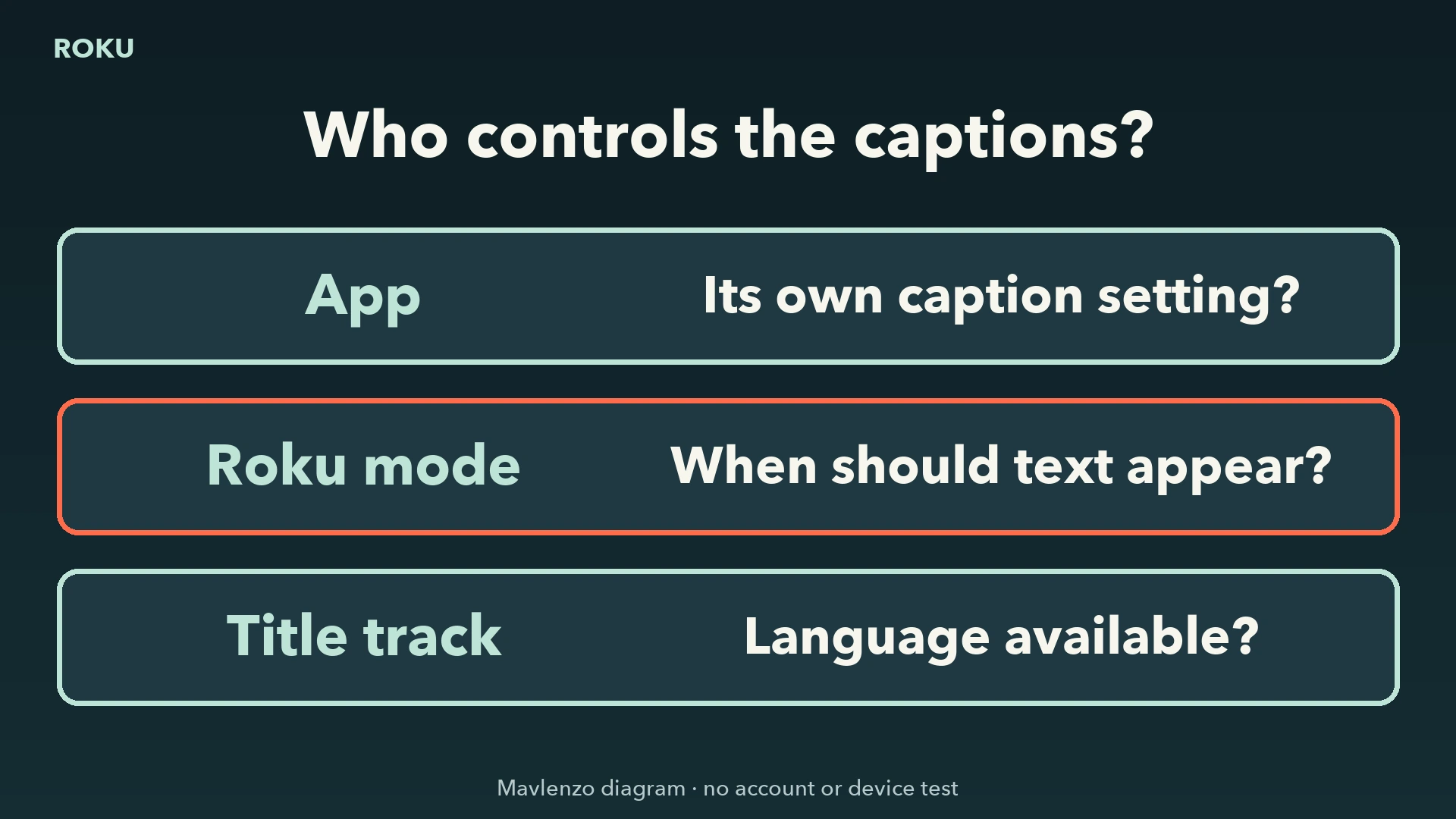
Some apps override Roku captions. Otherwise, Roku documents Home → Settings → Accessibility (or Captions) → Captions mode. Labels vary by language and device.
Inside the affected app, first look for its player’s language or caption menu. Record an explicit choice before returning to Roku settings. If your screen does not match this guide, stop and consult the service’s help for your device. Do not guess which command is equivalent.
Check the mode and compare the result
On always shows available captions; On replay, after Replay on compatible content; On mute, while muted on supported devices. No mode creates a missing track.
- Choose a title for which the app lists a caption track.
- At the setting level that actually controls this app, select the wanted mode.
- Replay the chosen passage and observe the result. Change one setting at a time so the comparison stays meaningful.
- Record whether the issue affects every title, one language or only one app.
For apps following Roku, Caption style provides a preview. Compare it with the actual programme from your usual seat. If the app controls its own style, consult its help. A factory reset is not the first step in this guide.
Watch the diagnostic path
Our fictional example separates the app setting, Roku mode and title track. The areas highlight in checking order. This is an explanatory diagram, not a recording of a television we tested.
Video transcript
- Captions are missing
Note the app and title - App has its own menu?
Check there first - App follows Roku mode?
Choose the wanted mode - On replay selected?
It depends on Replay - Is the track available?
A mode cannot create it - Compare another title
Record what changed
Make a useful support request
Give official support the app name, Roku model, title, language and comparison results. Redact email addresses, codes and other account details. Find more troubleshooting paths in the Mavlenzo guides.
Sources and method
Official sources checked on November 11, 2026, Montréal time: Roku caption settings and Roku Canada accessibility. The app and content provider determine which tracks are offered. No device, account or title was tested. Diagrams and animation are original Mavlenzo work. We are not affiliated with Roku.