Want to find download speed, upload speed and latency on FAST.com? This roughly 50-second video shows a continuous recording of the test: automatic start, opening the details and reading the results. You can then repeat the steps on your own connection.
Video transcript
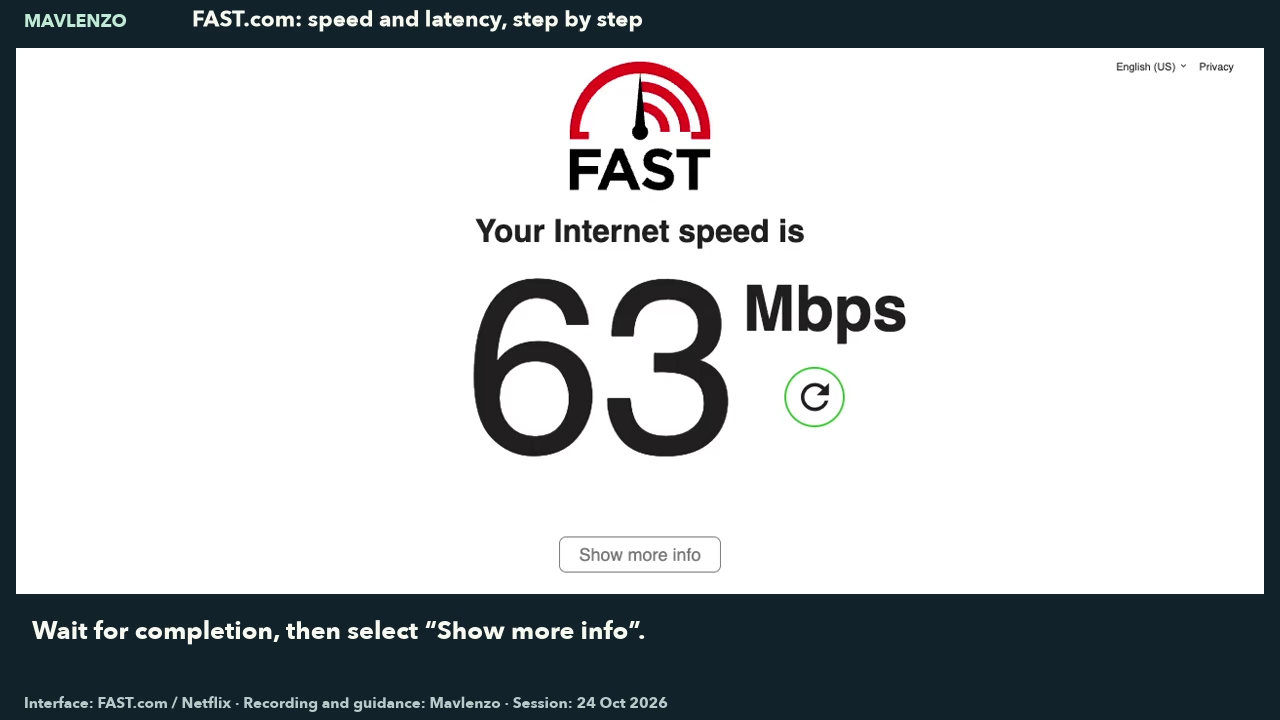
- FAST.com begins measuring download speed as the page loads. Pale numbers change during the measurement.
- Read the final black result. It describes this session rather than a guaranteed connection speed.
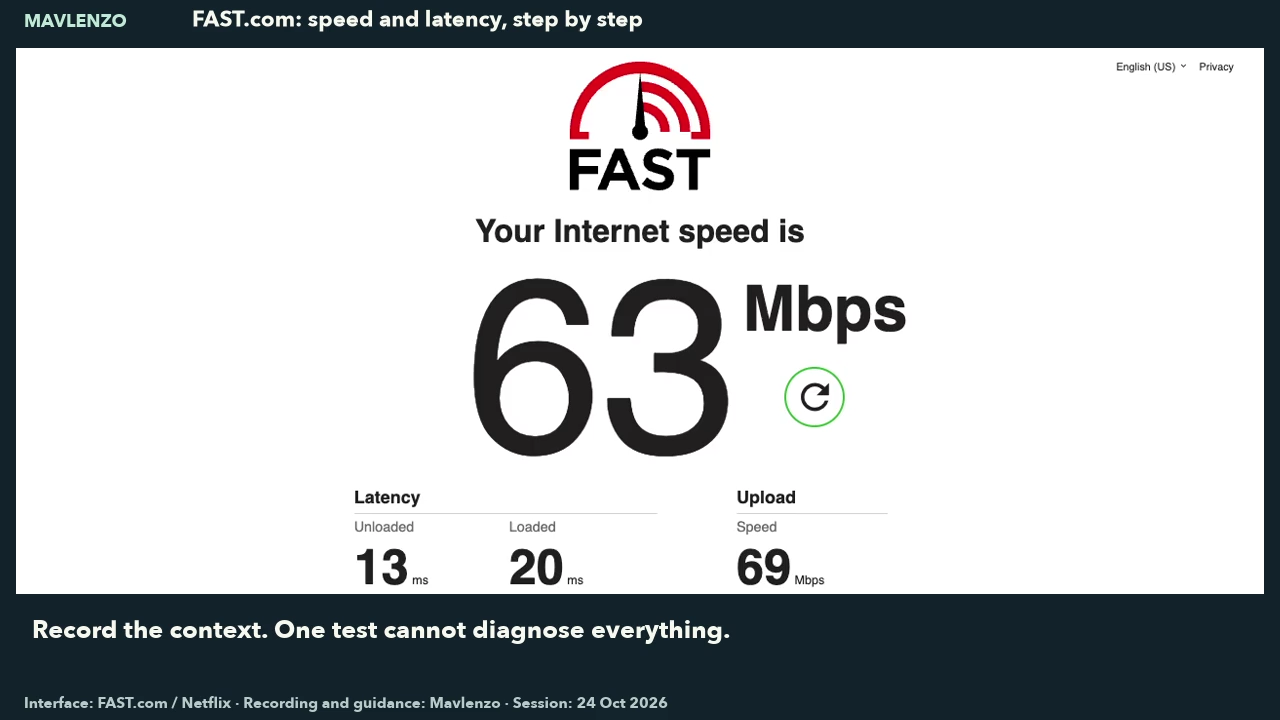
- The actual click opens the additional latency and upload results.
- Both latency measurements use milliseconds; upload speed uses Mbps. Wait until the numbers stop changing.
- These values belong to this Mac session. Repeat under comparable conditions; this is not a physical TV test or a streaming guarantee.
Follow the tutorial on your connection
- Open FAST.com. The test starts automatically. Wait for the large number to settle.
- Read the download speed in Mbps, then select “Show more info.”
- Wait for the additional measurements to finish. Find “Upload” and both latency figures: “Unloaded” and “Loaded.”
- Use the circular arrow beside the result to run another test. Record the conditions before comparing your measurements.
Understand the results
| Measurement | Unit | What it tells you |
|---|---|---|
| Download | Mbps | An estimate of how quickly data can be received during this test. |
| Upload | Mbps | An estimate of how quickly data can be sent during this test. |
| Unloaded / loaded latency | ms | The delay measured without test traffic, then with traffic. This is a delay, not a data rate. |
Does this result explain every playback interruption?
No. FAST.com measures your connection using Netflix servers. It does not test a particular programme, your IPTV application or the entire delivery path. A high number therefore does not guarantee uninterrupted playback or 4K quality.
Keep conditions similar when comparing tests: use the same device and connection type, and note other network activity. If results are regularly below the speed expected from your Internet plan, the FAST.com FAQ recommends discussing them with your provider. For further checks, see our playback buffering checklist.
Method and sources
This demonstration was recorded continuously with OBS Studio 32.2.2, using its Chromium Embedded Framework 127 browser source on an Apple Silicon Mac running macOS 27.0.1, on October 24, 2026 (UTC). FAST.com labels the recorded interface English (US); the explanatory article uses Canadian English. The 48.5-second video retains one interval of the original recording at normal speed, without internal cuts. Written guidance and Mavlenzo branding were added; there is no voiceover or audio track. The two images show distinct moments extracted from this same recording.
The crop removes the client, IP address, server and location rows. The visible values belong to one Mac demonstration session outside Canada. This is neither a controlled Internet provider benchmark nor a representative measurement of Canadian connections. No television, Fire TV, Apple TV or IPTV playback service was tested here.
Sources: FAST.com and its FAQ for the measurement method and limitations; Netflix’s explanation of latency and upload speed for the additional measurements. These documents were checked on October 23, 2026. Interface: FAST.com / Netflix. Recording, cropping and written guidance were prepared with automated tools for Mavlenzo.