A maturity rating limits content on a profile; a PIN restricts access to a profile. Blocking a film on your child’s profile does not block it on the other profiles. To choose the right Netflix setting, start with the need, then check every accessible profile on the device being used.
This guide for Canadian households uses official English and French help checked on November 4, 2026. Our contribution is a profile-by-profile worksheet and two contrasting situations. This is a documentary explanation: we have not made these changes on an account or tested their outcome on a television.
Four needs, four different controls
| Your need | Control to examine | What still needs checking |
|---|---|---|
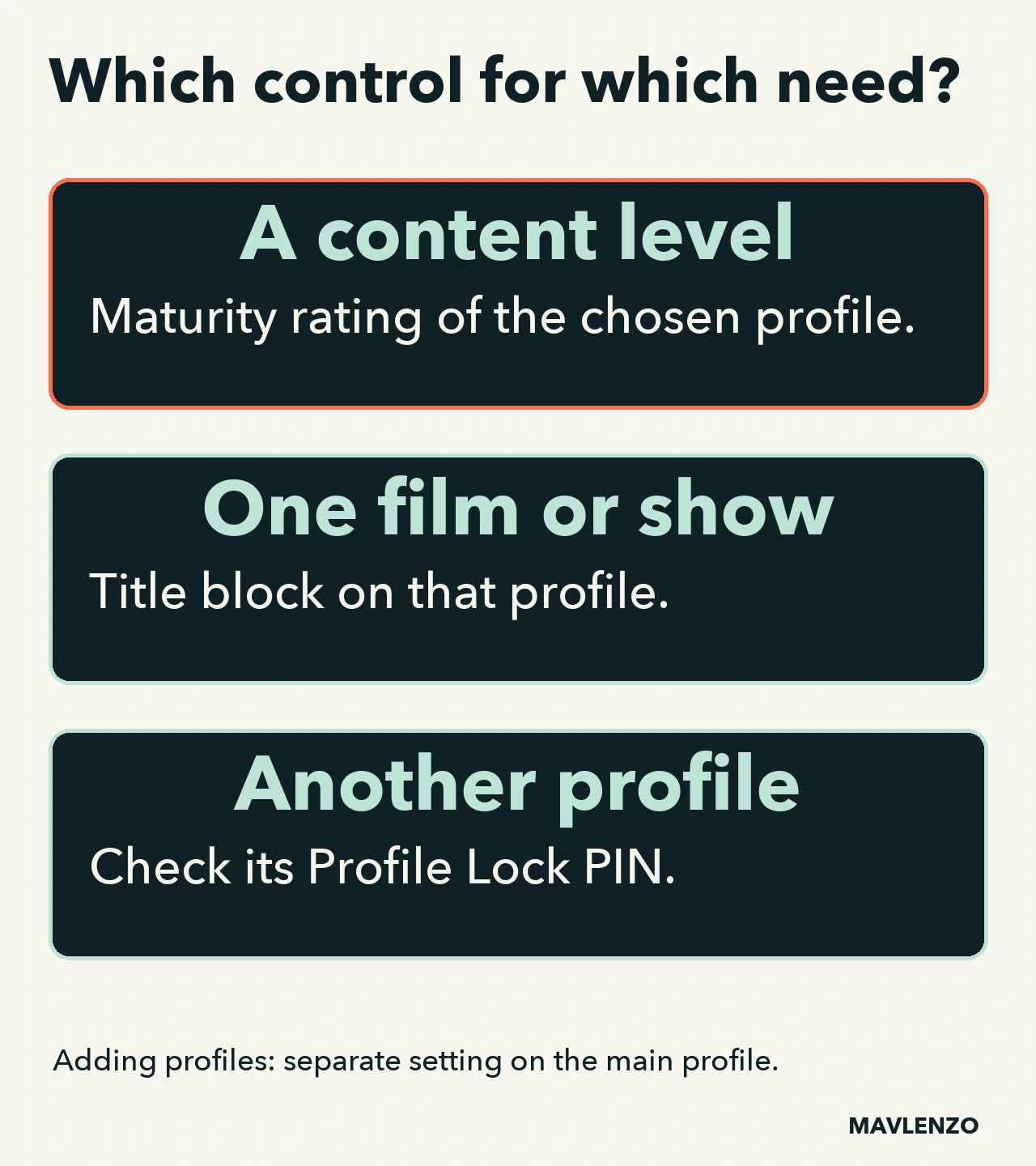
| Limit the content level | The profile’s maturity rating | Other profiles may allow a different level. |
| Exclude one particular film or show | Block the title on that profile | The block does not automatically apply to the entire account. |
| Restrict access to another profile | A Profile Lock PIN on that other profile | Locking only the child profile does not lock the others. |
| Require permission to add profiles | The new-profile PIN requirement on the main profile | This option is separate from simply locking a profile. |
Netflix’s maturity and title-restriction help describes the scope of the first two controls. You choose the appropriate maturity level; we do not recommend a universal age or rating.
Start with a worksheet of your profiles
Before changing anything, make one row per profile on a private sheet. Use labels such as “child”, “adult A” and “adult B” instead of full names. For each row, record: goal → current setting → intended change → result to check. Never record a PIN, password or sign-in code.
Fictional example: the child profile already hides content above the chosen rating, but adult B’s profile remains accessible. Lowering the child profile’s rating further does not change access to B. The missing check concerns the lock on B and any other more permissive profiles.
Another fictional example: one film does not suit your family, while other programmes with the same rating do. Blocking that title on the relevant profile addresses the specific need. It does not replace checking the other profiles. These examples illustrate a decision, without representing a test or a protection guarantee.
Set content restrictions in a web browser
Netflix requires a web browser for Kids-profile maturity and blocked-title changes. Its current procedure is:
- Open your Netflix account, then Profiles.
- Select Adjust parental controls, then the profile to change.
- Verify your identity using the method Netflix offers.
- Choose the rating or add the title under restrictions, then save.
Return to your worksheet: which profile did you actually change? A blocked title is removed from that profile, not every other one. To undo a title block later, help describes removing the title from the list and saving the change.
Check access and new-profile creation separately
According to the Canadian profile-PIN help, a four-digit PIN protects the selected profile. In a browser, use Account → Profiles → the intended profile → Profile Lock, then create and save its PIN. Follow any identity-verification prompts Netflix displays; do not share those details.
To require a PIN when adding new profiles, the setting belongs to the main profile, the first profile on the account. After setting its lock, enable the corresponding option and save. A PIN on a different profile does not by itself enable this option.
Verify the result on the device being used
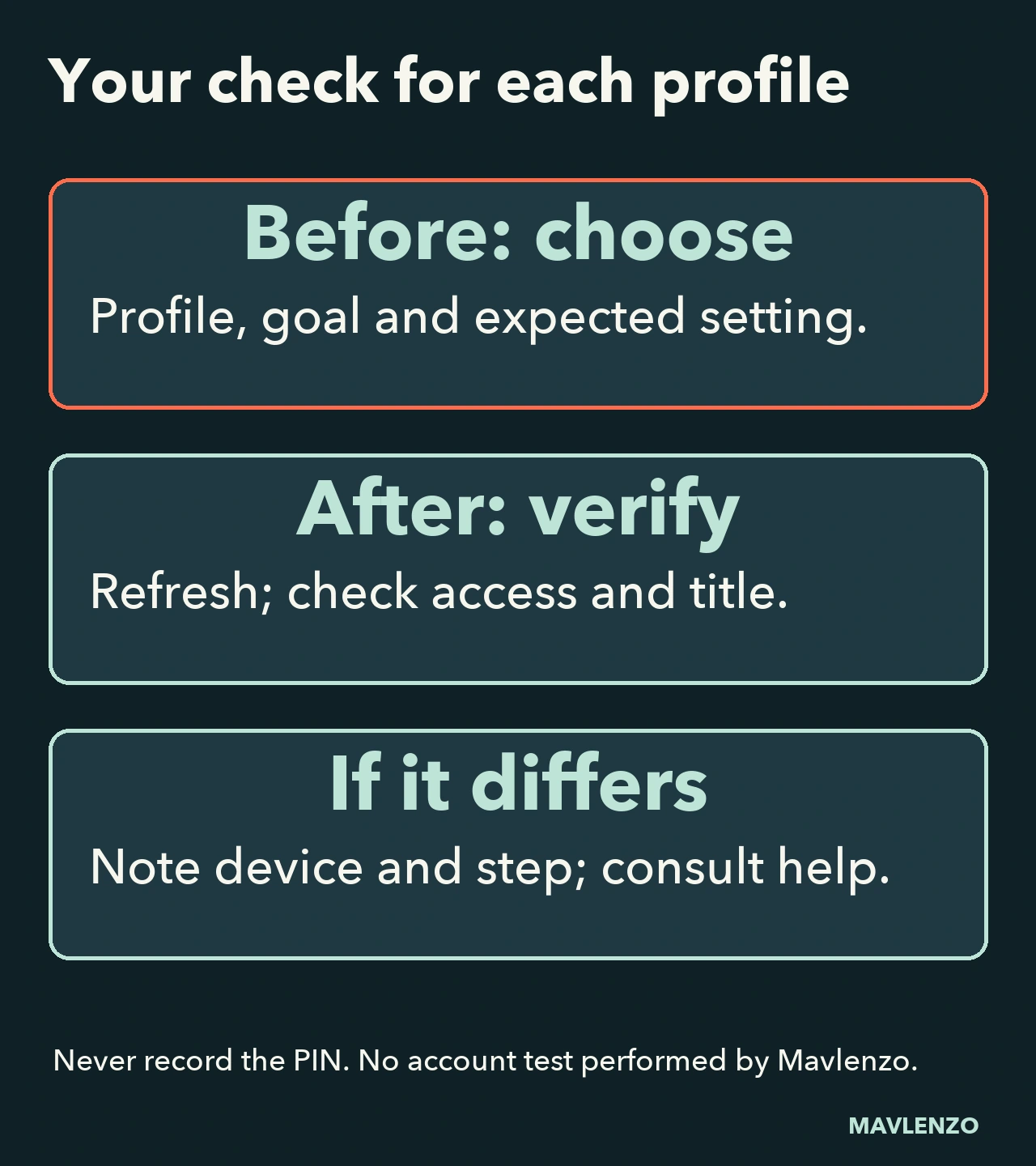
- Refresh settings by switching to another profile and back; help also offers signing out and back in if necessary.
- On the changed profile, check the saved rating or search for the title you deliberately blocked.
- Check access to the other profiles you chose to lock. Do not confuse “profile displayed” with “playback permitted”.
- Record the device, setting and observed result. If it differs from your goal, consult the relevant help before considering the configuration complete.
This distinction matters on some older devices: Netflix says a PIN may not be requested when entering the profile, but is still required to play a show or film in it. Some browsers can also open the last-used profile automatically after sign-in. Anyone with the account password can change parental controls. None of these settings should be described as absolute protection.
Watch the decision process
This Mavlenzo animation shows how to choose a control and verify its scope. The diagrams do not reproduce the Netflix interface. Enable English captions; the transcript is available below.
Video transcript
- A maturity rating and a PIN
do different jobs. - List each accessible profile
and the need you want to address. - Original documentary diagram.
No account has been tested. - The maturity rating limits content
on the selected profile. - For a Kids profile,
use a web browser. - Save the chosen setting.
Other profiles still need checking. - One title is unsuitable despite
its rating? Block that title. - The block applies to this profile,
not every profile on the account. - For Kids profiles, use
the web browser for this too. - Does another profile allow more
content? Check access to it. - A Profile Lock PIN applies
to the profile you protect. - A PIN on the child profile alone
does not lock the other profiles. - Adding profiles has a separate
setting on the main profile. - Set its lock, then require
a PIN to add new profiles. - The account password allows
parental controls to be changed. - Refresh, then check the result
on the device actually used. - On some older devices, the PIN
is required when playing a title. - Record the outcome without the PIN.
See the guide for details.
Sources and limitations
We read the four official pages linked in this guide in French Canadian and English on November 4, 2026. For the profile-lock page, we explicitly selected Canada. Translations from the same provider are not independent confirmations. This article does not certify a particular rating, title availability, device outcome or account test.
The worksheet and scenarios are our original documentary aids. Explore our Guides for other setup needs. Mavlenzo offers a separate service without claiming Netflix affiliation; our offers do not include a Netflix subscription.