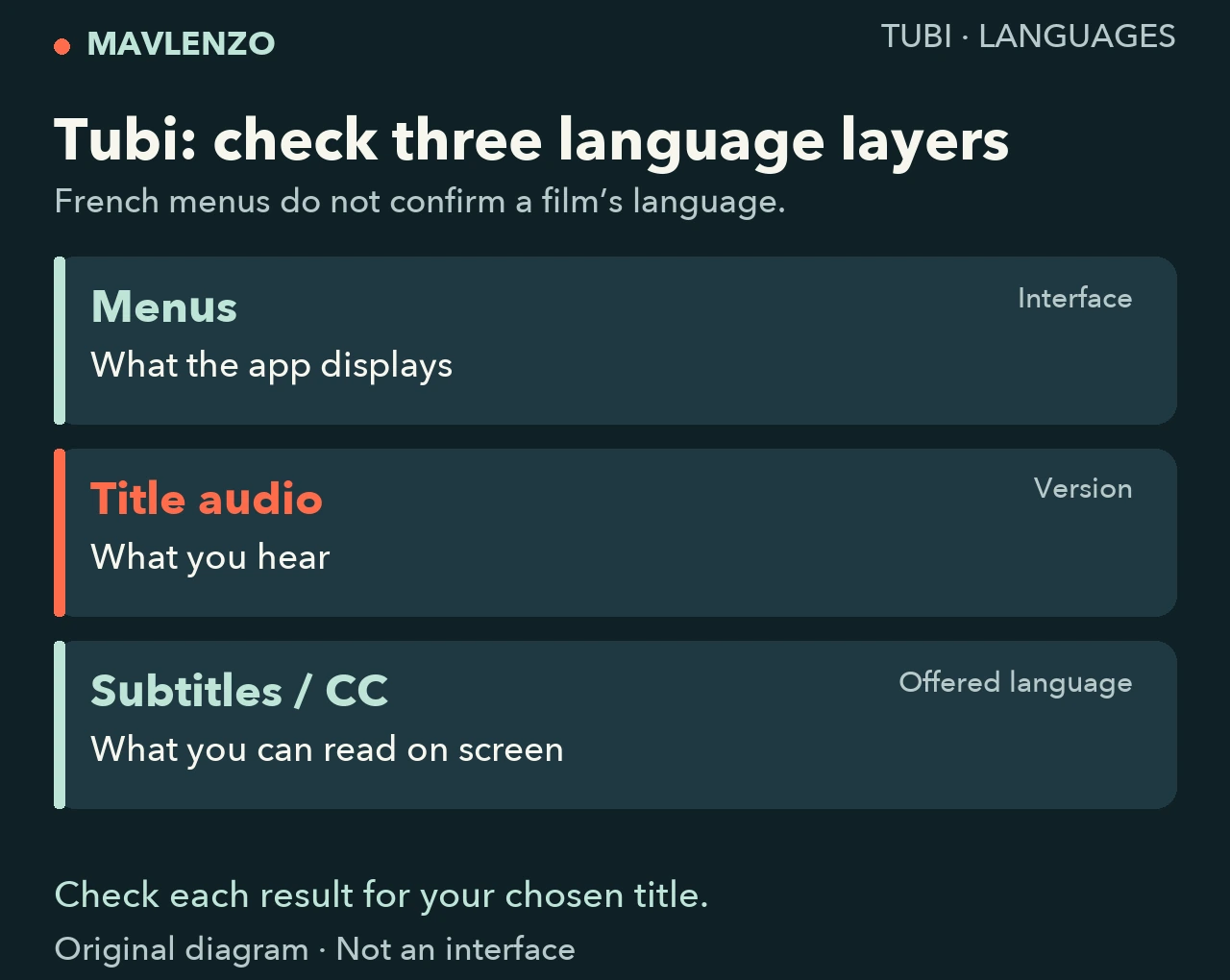
To use Tubi in French in Canada, check three things separately: the menus, your chosen title’s audio and its available subtitles. French menus do not confirm a French dub. A CC icon indicates captions without, by itself, confirming their language.
If you want to hear French, the deciding result is the audio. If another audio language with French text works for you, check the language offered through CC instead. The worksheet below helps you choose from what you can actually confirm on your device.
What “Tubi in French” can mean
Tubi describes itself as a free streaming service available in Canada. That does not promise an entirely French-language catalogue. Look for three different results for your own needs:
| What you need | What to check | What is insufficient |
|---|---|---|
| Read the menus in French | The text actually displayed in Tubi | An address containing “fr-ca” |
| Listen to a film in French | The exact title’s version and audio | French menus or a translated poster |
| Read the dialogue in French | A French option actually offered in subtitles | A CC icon without its language choices |
Start with the title and check its version
Choose the film or episode on the device you plan to use. Record the exact title and any version label. Tubi’s language help notes that some works have separate “Dubbed” and “English” entries. That is a reason to check the version, not evidence that your chosen work has a French dub.
- Before playback: record any language information visible on the listing. If none appears, write “audio unconfirmed” rather than infer a language from a translated title.
- If you can play the title: listen to a passage with dialogue. If the player offers audio choices, record the options actually present. This guide does not assume every title or device has that menu.
- After checking: write “French audio confirmed”, another language you heard, or “unconfirmed”. Credits, a trailer or a few seconds without dialogue do not settle the question.
Your decision: if French audio is essential and you cannot confirm it, leave that title pending and look for another option. Repeatedly changing menu language does not establish a dub.
Open CC and read the language offered
Tubi’s official caption help says availability depends on material supplied by its partners. Find CC and check the language actually offered. The documented starting points are:
- Web: show the title’s controls and open CC at the bottom right.
- Android: tap the video, then CC at the upper right.
- iPhone/iPad: during playback, tap the screen, then CC and an offered language.
- TV, streamer or console: find CC with the remote; also consult the device’s caption settings.
These are documentary pointers; we have not tested your model. If placement differs, record your device and consult the relevant help rather than hunt for a missing button. A family’s inclusion in the Canadian supported-device list does not establish a particular film’s languages.
For your own choice, distinguish “French subtitles offered” from “French subtitles enabled and readable”. If you enable an option, check its text during dialogue. English-only CC does not meet a need to read French. If no choices appear, that observation concerns this title and session; it does not describe the whole catalogue.
The worksheet to complete before choosing
Copy this short template into a note. Leave a result “unknown” when information is missing; do not substitute an assumption for an observation.
Title and episode: …
Version label: … / none shown
Device, operating system and Tubi version if known: …
Country of use, date and time: Canada, …
Menus displayed: French / other / unknown
Listed audio: … / unknown
Audio confirmed by listening: … / unconfirmed
Languages offered in CC: … / no choices visible
Subtitles enabled and readable: … / unchecked
My need: hear French / read French / both
Decision: suitable / another title / ask Tubi
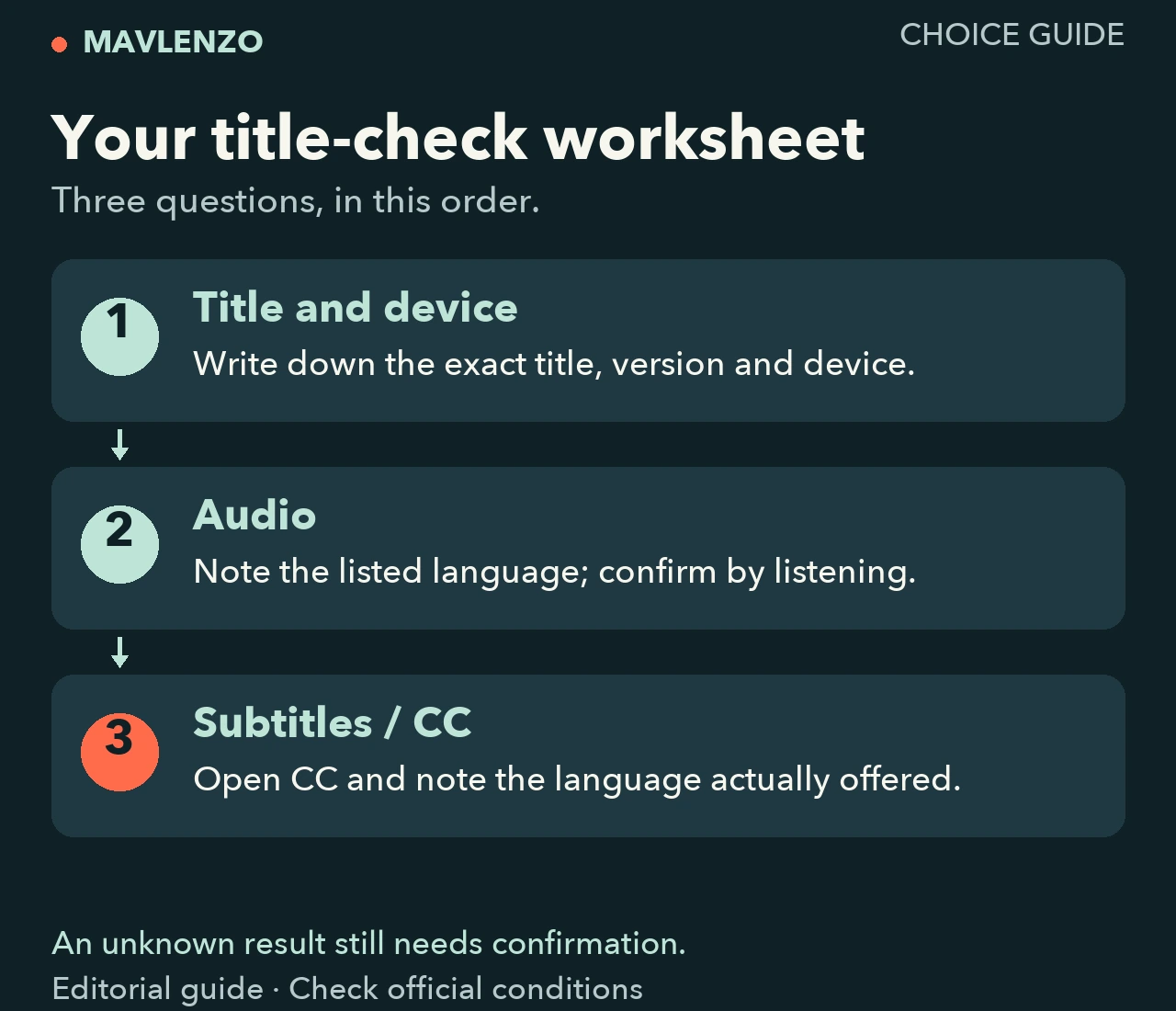
Fictional example: the menus are French, the audio you hear is English and CC offers only English. That title has not met the French requirement in that session. In another fictional case, readable French subtitles may suit someone who accepts English audio while failing the needs of someone who requires a French dub. These examples explain the decision; they do not describe tested films.
If your question concerns only the menus
For the app, Tubi’s language help points to the device’s preferred language. Find the language settings on your phone or TV, record the current value, then follow your model’s instructions if you want to change it. A device-level change can affect your use beyond Tubi; confirm its scope before applying it.
For the web, we could not read the full current help article about new language settings. We therefore do not present an older browser procedure as a universal solution. If your interface shows a language choice, check its effect on the menus, then separately recheck the title’s audio and CC.
Review the checks in a short video
This Mavlenzo animation summarizes the decision worksheet. It explains a documentary method; it does not recreate Tubi’s interface or show playback performed by our team.
Video transcript
- Separate Tubi’s menus, the title’s audio and the subtitle language. French menus do not confirm either of the other two.
- Record the exact title, version and device. A dubbed version may have its own listing; confirm the language before choosing.
- Show the player controls and open CC if available. Choose only a language actually offered. The CC icon alone does not mean French.
- Record audio and subtitles separately. If the French option you need is unconfirmed, choose another title or ask Tubi with the title and device details.
When to ask Tubi for clarification
If the listing remains unclear, give the Tubi Help Center the exact title, episode, version label, device, country and the choices you see. Ask a specific question: “Is French audio or are French subtitles offered for this title on this device in Canada?” Do not send passwords or payment information. Our streaming-device choice guide can help you identify your equipment first.
Sources and method
This documentary guide uses official Tubi pages consulted on October 28, 2026, Montréal time. General help describes functions; it does not verify a title’s Canadian availability or a French track. The pages did not display update dates. We have not tested a Tubi account, device or Canadian playback. The worksheet, two illustrations and animation are original Mavlenzo explanations. Confirm a title’s options when you use it.
Disclosure: Mavlenzo sells a separate TV subscription service. This guide does not state an affiliation with Tubi or offer Tubi as part of our products. Find other tasks in our practical guides.