If AirPlay is not working, first identify the blocked stage: the control inside the app, the destination in the list, permission to connect, or playback after selection. These situations do not all call for the same check. A television missing from the list does not, by itself, prove that Wi-Fi is broken.
This guide is for readers sending content from an iPhone or iPad to an Apple TV or a television whose exact model supports AirPlay. It organizes Apple’s Canadian help and adds a worksheet for recording observations. It does not cover a Mac used as a receiver, Android or Windows.
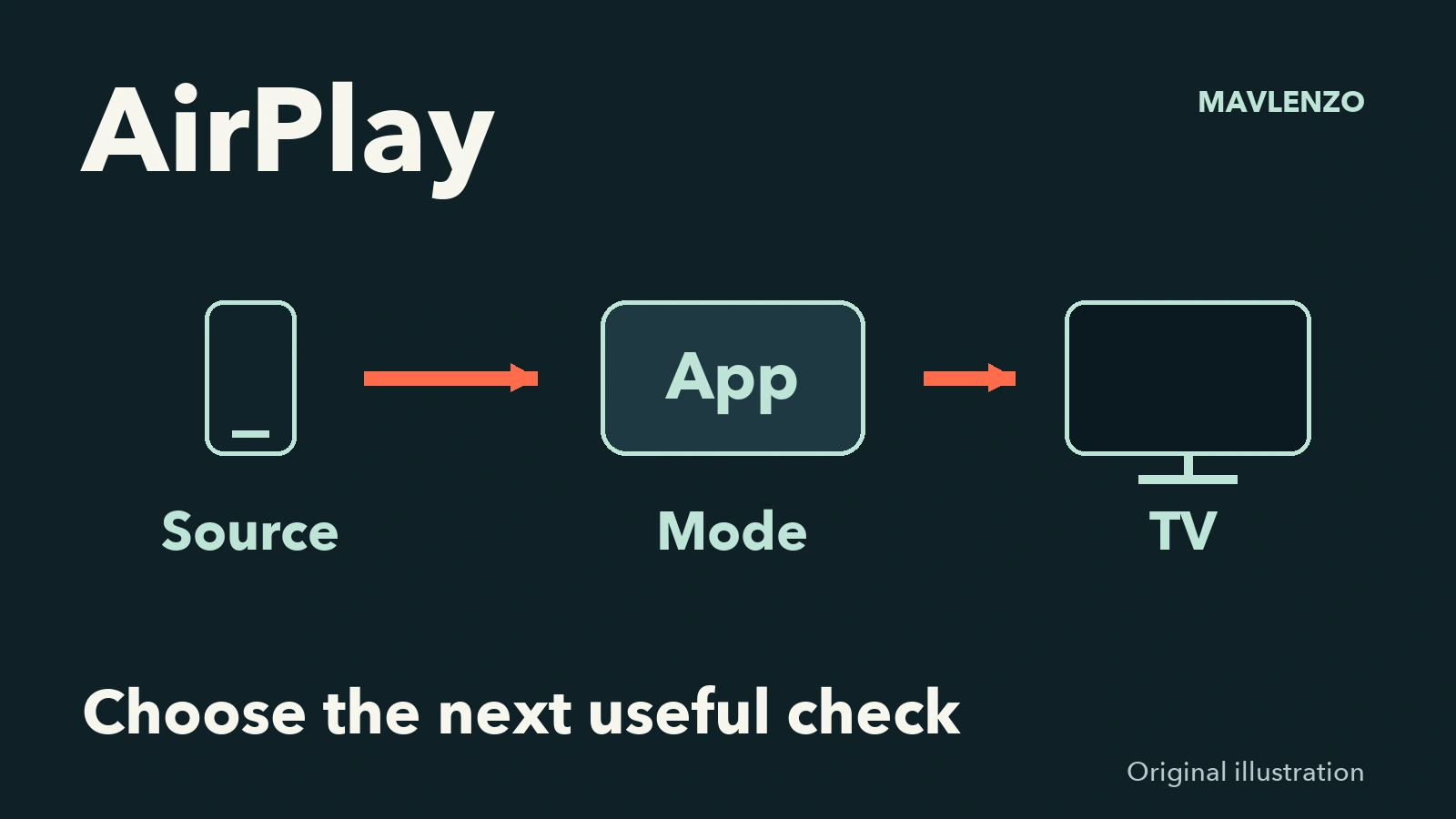
Identify the three parts before changing a setting
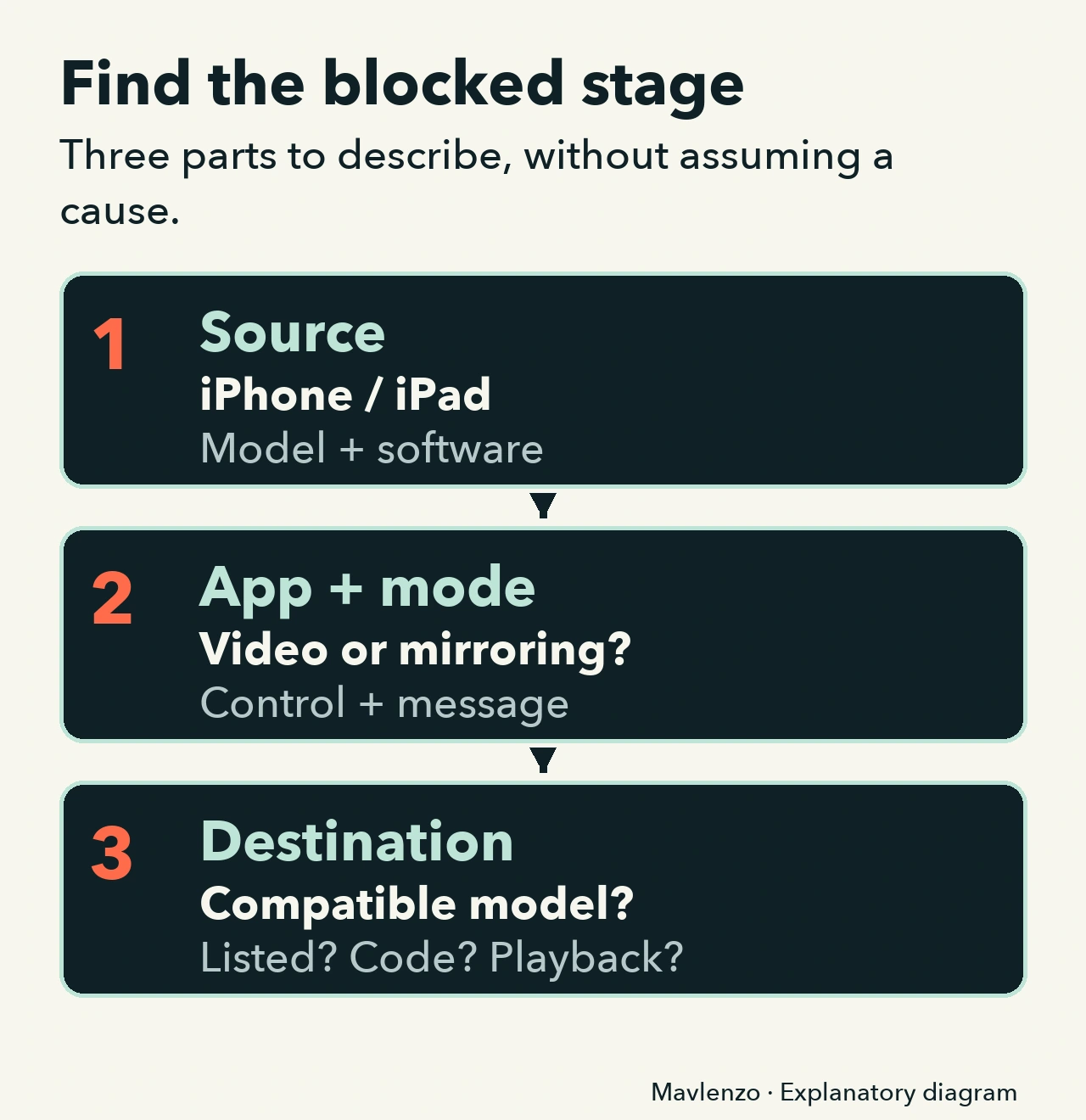
- Source: which iPhone or iPad are you using, and which software version?
- App and mode: do you want to stream a video from an app or display the whole screen? Record the app and the control you are looking for.
- Destination: what is the exact Apple TV or television model? A name such as “Living room TV” does not establish compatibility.
Apple describes video streaming and Screen Mirroring as separate routes. Its instructions do not prove that every app or television supports both. To prepare an Apple TV, see our Apple TV setup guide. The Google Cast route addresses a different system.
Five situations for choosing the next check
1. You cannot find the button
What to observe: is the control missing inside a particular app, or are you looking for screen mirroring? Apple notes that some apps put AirPlay behind another control; Photos, for example, may use Share first.
Useful next step: check the app’s help and the mode you want. For mirroring, follow the Control Centre route appropriate to your iPhone or iPad in Apple’s streaming and mirroring guide (Canadian French). Do not assume that all apps put the same control in the same place. Some video apps do not support AirPlay.
2. The button is there, but your television is not
What to observe: record the expected destination and whether no destinations, or only this one, are missing. Check the exact model’s documentation; being a smart TV does not establish AirPlay support.
Useful next step: Apple recommends checking that compatible devices are powered on, near one another, updated and on the same Wi-Fi network. Work through those points individually and look for the destination after each check. An app may also have its own conditions; one result does not confirm a cause. On a hotel, school or workplace network, ask its administrator which connections are allowed instead of changing their equipment.
3. The destination appears, but connection is refused
What to observe: record the exact message and distinguish a code request from a refusal without an explanation. If the television displays an AirPlay passcode during mirroring, Apple directs you to enter it on the iPhone or iPad.
Useful next step: on Apple TV, a password request may call for checking content restrictions or AirPlay password settings. If the destination was configured in the Home app, Apple also describes a conditional check of the home’s AirPlay restrictions. Follow the owner’s or exact model’s documentation; do not remove all protections to try a connection. Keep codes and passwords out of the support worksheet.
4. You select the destination, then the video will not play
What to observe: record the app, content, stage reached and any message. Does the failure affect this app or several permitted uses? If feasible, comparing a personal video that you are allowed to display can document a difference. It does not prove that another service should work.
Useful next step: check the app’s AirPlay support before concluding that the television has failed. For Apple TV, Apple suggests checking whether the video app is offered in its App Store if AirPlay cannot be used. That does not guarantee availability on your model or inclusion of a title in your subscription. Do not try to bypass a playback restriction.
5. The relevant checks have not changed the result
What to observe: keep the checks you actually performed and their results. “Still absent,” “code requested,” “playback stopped” and “not checked” are more useful than a general “it does not work.”
Useful next step: Apple includes restarting the devices used for AirPlay or mirroring, then trying again. Follow each device’s own instructions and observe the result after one action. This guide does not prescribe a factory reset, a DNS change or disabling network protection. If the problem persists, share your observations with Apple Support, the destination’s manufacturer or the app developer, according to the blocked stage.
Picture present, but no sound? Continue with our Apple TV no-sound diagnostic guide. The audio path needs its own checks; we do not repeat that procedure here.
Video: choose your next AirPlay check
The original animation below shows how to choose a branch and record an observation. It uses diagrams and a fictional example, without reproducing an Apple interface. It is silent, with English captions and a transcript. No device, account or AirPlay connection was tested.
Video transcript
- AirPlay: identify the blocked stage. Explanatory animation; no device was tested.
- Identify the iPhone or iPad, the app and the exact destination.
- Missing button? Separate streaming a video from mirroring the whole screen.
- The control can vary by app. Some video apps do not support AirPlay.
- Missing destination? Check the model’s compatibility, device power and proximity.
- Check software and the common Wi-Fi network. Try again after one change.
- If the TV displays an AirPlay passcode during mirroring, enter it on your device.
- On Apple TV, check the relevant access settings. Do not remove all protection.
- Destination selected, but the video will not play? Record the app and message.
- A permitted comparison can show a difference. It does not confirm the cause.
- If the checks do not help, restart the affected devices using their instructions, then retry.
- Record what changes. One improved attempt does not establish a confirmed cause.
- On a managed network, ask its administrator. Do not change their equipment.
- Fictional example: the TV is not listed and its model is not recorded. No success is simulated.
- The worksheet keeps “compatibility: not checked.” The next step is the model’s instructions.
- Record one check and its result. Keep passwords and personal codes out of the worksheet.
- Picture present, but no sound? Follow the audio guide. Otherwise, send the observations to support.
A worksheet to copy before contacting support
Complete only what you observed. Keep “not checked” for missing answers; do not turn an assumption into a diagnosis.
- Source: iPhone or iPad model and software version.
- App and mode: app name and version, video streaming or screen mirroring.
- Destination: brand, model and software; compatibility confirmed or not checked.
- Symptom: missing button, missing destination, connection refused or playback failure; exact message if present.
- Network: home or managed network; common Wi-Fi network checked or not checked.
- One check: the action actually performed, then its result and retry time.
- Next request: which detail is missing or which stage needs support?
Do not include a password, pairing code, account identifier or public IP address in this worksheet.
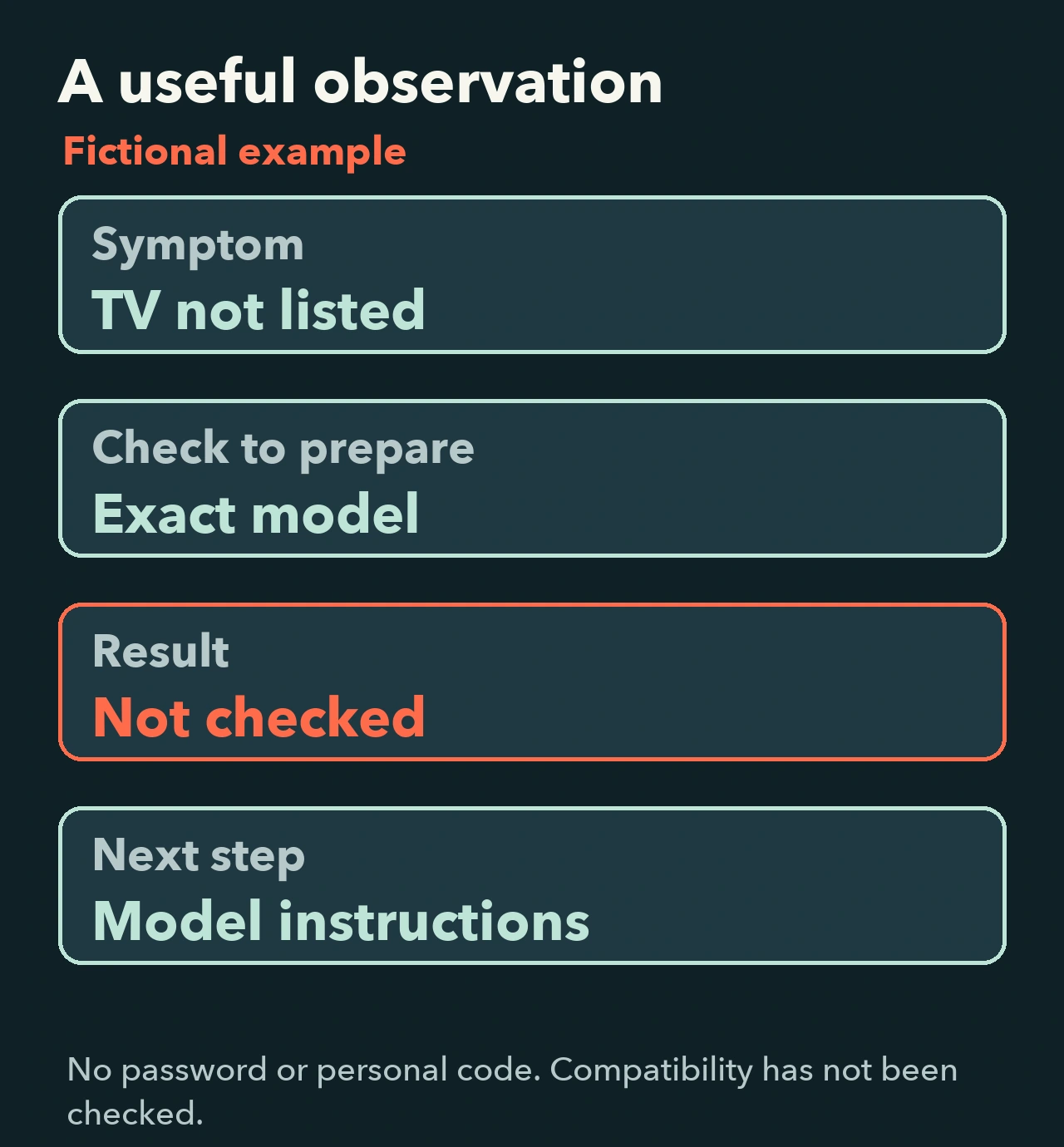
Fictional example: a missing destination
A person uses an iPad and cannot find “Living room TV” in the list. They have not recorded the television’s model. The worksheet therefore keeps “compatibility: not checked.” The next action is to record that model and read its documentation, rather than declare the network faulty or buy another device. This example illustrates a decision; it is not a test performed by our team.
Sources and limits
Our contribution is the symptom-based organization, diagrams and observation worksheet. The technical checks come from the Apple documents below. Menus, compatibility and app capabilities depend on the actual model and software. A successful attempt describes that attempt; it does not guarantee a lasting repair.
- Apple Canada: help with AirPlay streaming or screen mirroring.
- Apple Canada: stream video or mirror an iPhone or iPad (Canadian French).
An independent documentary guide, without hardware tests or a claimed Apple affiliation. Find related routes in our streaming guides.