Apple TV shows a picture but no sound? First identify your setup: an Apple TV box connected by HDMI, the Apple TV app on another device, or a video sent through AirPlay. Each has a different troubleshooting route. The box’s Video and Audio menu is not the settings menu of an app installed on a smart TV.
This guide helps you choose relevant checks, record what changes and ask for targeted help if the silence continues. It uses Apple’s Canadian support documentation; the diagrams show our diagnostic approach.
Which device starts the video?
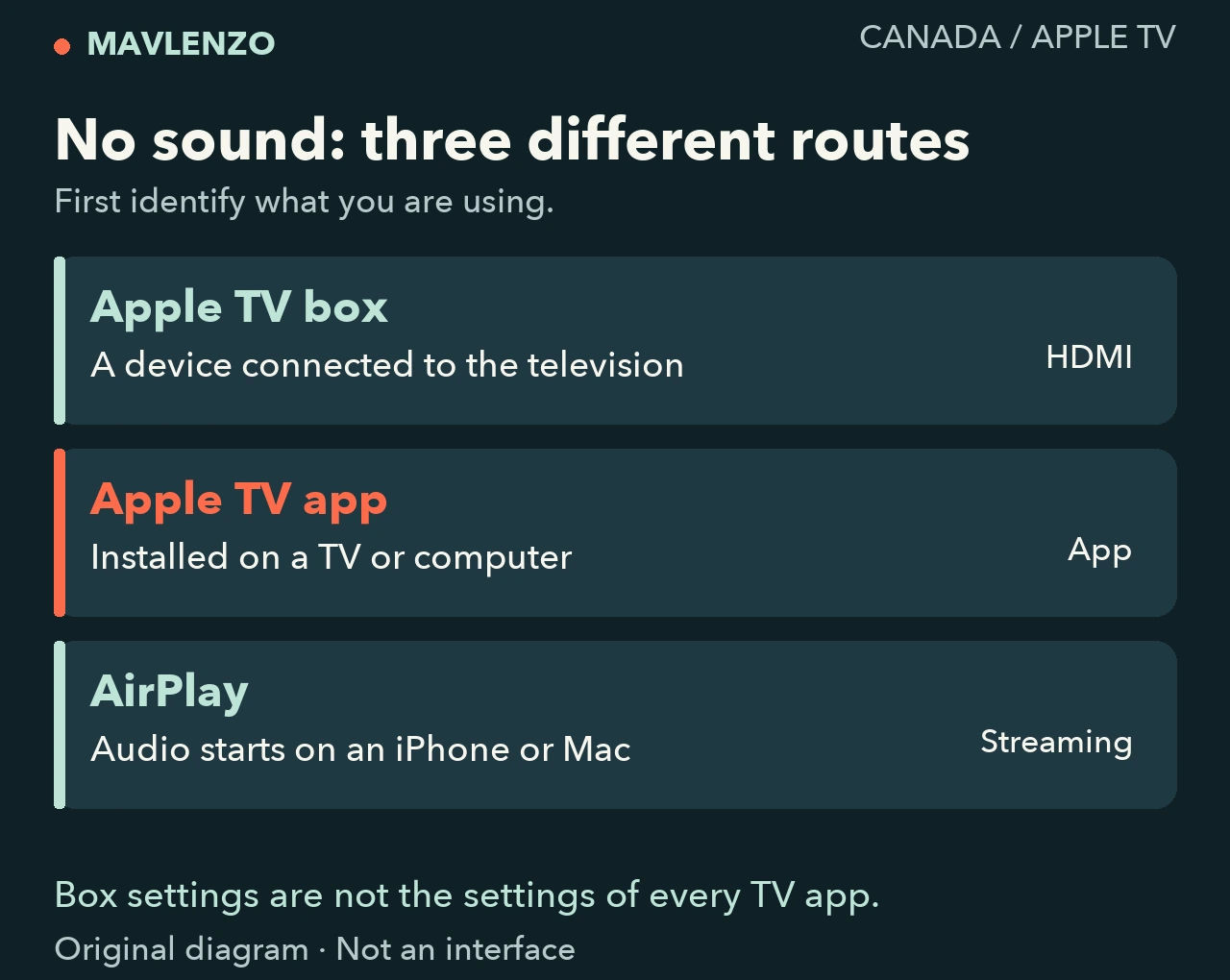
- Apple TV box: a separate Apple device connects to the television by HDMI. Follow the box route even when you are watching an app other than the Apple TV app.
- Apple TV app: you open the application directly on a television, console, streaming device or computer. Identify that host device before looking for its sound settings.
- AirPlay: you send a video from an iPhone, iPad or Mac. Include the source device and selected destination in your checks.
If the setup combines several elements, start with the action that launches the video. Sending a video from an iPhone to an Apple TV box starts with the AirPlay route; you can then investigate the box-to-television connection.
Locate the symptom before changing settings
Try the following comparisons at a reasonable volume, replaying the same passage after each change. Record what you observe rather than treating the first result as a confirmed cause.
| What you observe | Useful comparison | Route to investigate |
|---|---|---|
| Only one film is silent | Try another title in the same app | That content and its available audio options |
| Only one app is silent | Try a different app on the same device | The affected app and its host device’s settings |
| Everything on the box is silent | Check the output and HDMI path | The box, television and audio equipment between them |
| It happens only with AirPlay | Check sound at the source, then the destination | The AirPlay route and volume at both ends |
This is an orientation tool. One working app does not prove that every audio format works, and a successful attempt is not a guarantee of a lasting repair. Apple’s Apple TV 4K audio guide also explains that available audio options depend on what you are watching.
Apple TV box: isolate the connection before the audio format
First check volume and mute on the television or equipment actually producing the sound. Then use Apple’s no-sound help for the Apple TV device:
- Check the HDMI connections; try another cable suited to your setup if one is available.
- Restart the devices as Apple describes. If a receiver or HDMI switch sits between the box and television, temporarily try a direct connection.
- If sound returns with the direct connection, keep that observation and consult the intermediary’s manufacturer. It helps identify the path to investigate.
If needed, the same document then describes a test under Settings → Video and Audio → Audio Format → Change Format, choosing a different format. It also mentions Continuous Audio. Record the starting value, change one setting at a time and replay the same passage, so you can return to your previous configuration if the attempt does not help.
Navigation sounds are a separate case: Apple points to Sound Effects and Music when those are missing. Hearing a menu effect does not establish that a film’s audio works.
Apple TV app on a television or computer
Use the sound settings of the device running the application. On a smart TV without an Apple TV box, the box’s Settings → Video and Audio path is not your procedure.
Apple’s app playback guidance separates updates by platform: an Apple device, Windows and the Microsoft Store, or a compatible television and its manufacturer’s support. Check the route for your device. If the video also fails to start, that document includes checking service status and trying another device on the same network.
If the picture remains smooth and only one app is silent, give that result to the app’s support team or device manufacturer. A slow-connection procedure alone does not address this particular audio symptom.
AirPlay: check the source and destination
For AirPlay video with no audio, Apple says to check volume and mute on the source device and on the television or receiver. Its AirPlay troubleshooting document also covers the shared network, updates and restarting.
As a comparison, stop streaming and check whether the same passage has sound on the source. Then send it to the intended destination again. Note where the silence begins, keeping the box, app and another manufacturer’s television settings distinct.
Follow the route in the video
Video transcript
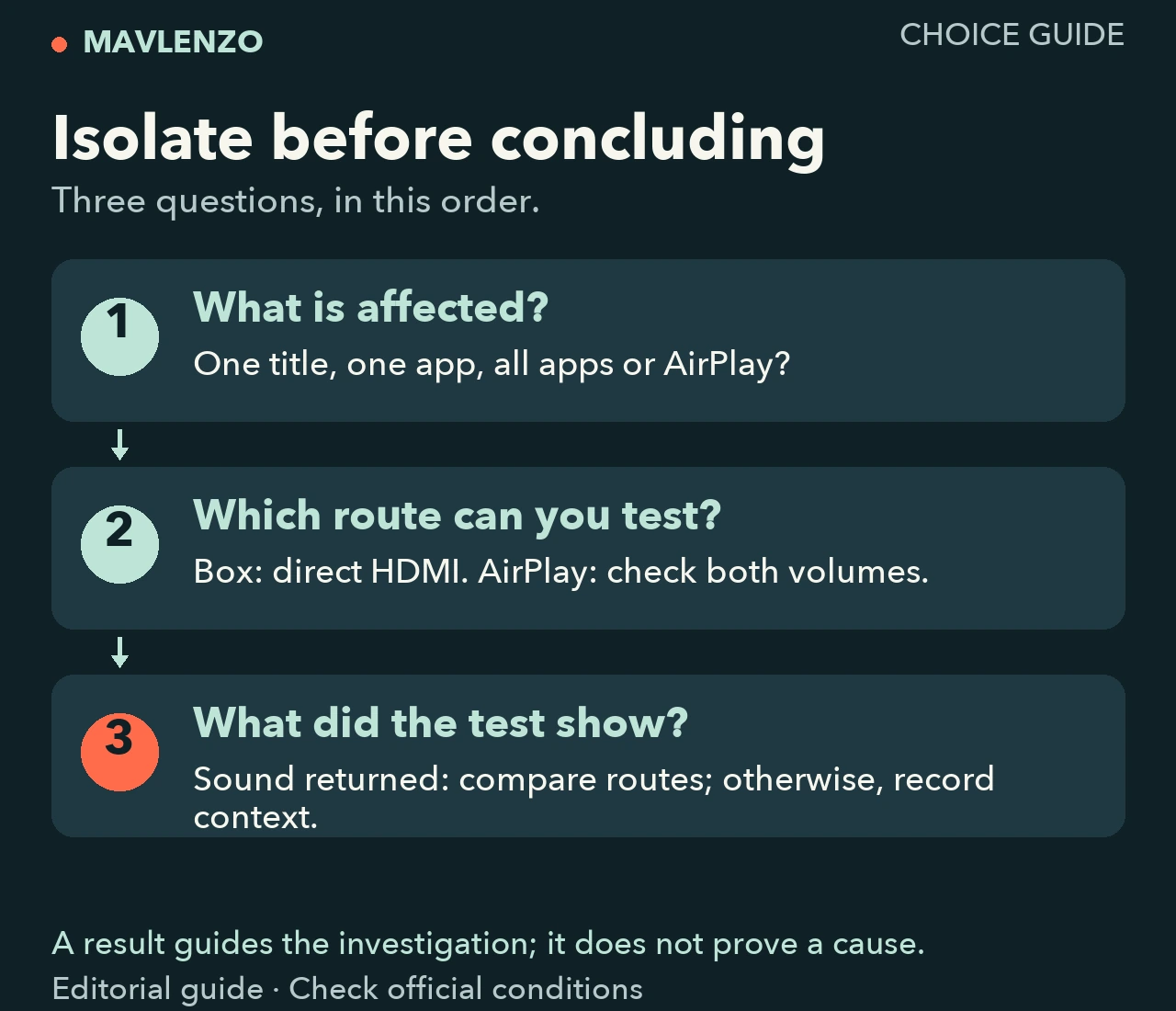
- Distinguish the Apple TV box over HDMI, the app installed on a device and AirPlay from an iPhone or Mac.
- Record where sound is missing: one title, one app, all apps or AirPlay only. This comparison describes the issue rather than proving its cause.
- For the box, direct HDMI to the TV helps isolate an intermediary. With AirPlay, check volume on the source and the television or receiver.
- Record the result, model, software version, app and title. If the issue remains unresolved, provide this context to support.
Prepare a useful support request
If the problem continues, bring the following observations so support does not have to repeat setup steps you have already completed:
- the model starting the video and its software version;
- the app, affected title and result with another title;
- the selected output: television, soundbar, receiver or other destination;
- any HDMI intermediary or use of AirPlay;
- the check attempted, original setting and observed result.
For general installation, see our Apple TV guide. If the picture freezes or keeps loading, choose the relevant troubleshooting task in our practical guides.
Sources and method
Apple documents read on 27 October 2026 (UTC): Apple TV device with no sound, AirPlay, Apple TV app playback and Apple TV 4K audio controls. Menus depend on the model and software version. The two diagrams and animation are original Mavlenzo explanations based on that documentation; no box, television, account or successful sound repair was tested for this article.