Netflix NW-2-5 means the device took too long to reach Netflix. Start with its connection, then choose the next check according to what still works: another app, another device or neither. Record a useful result before changing a setting.
This guide for readers in Canada helps organize those checks and prepare a request to your Internet service provider (ISP). Our decision prompts complement Netflix’s official NW-2-5 help; they do not establish a particular fault or guarantee a repair.
What should you check on the device showing NW-2-5?
If the options appear on the error screen, open More Details → Check your network. Record the exact result. Netflix also suggests trying another Internet app or the device’s network test. Menus depend on the model; if a path is missing, consult its manual rather than look for a menu designed for another television.
Make the first comparison on the same device. A phone opening a web page tells you about that phone at that moment; it does not confirm that your television can reach Netflix. A second device on the same network can then help establish how widely the problem occurs.
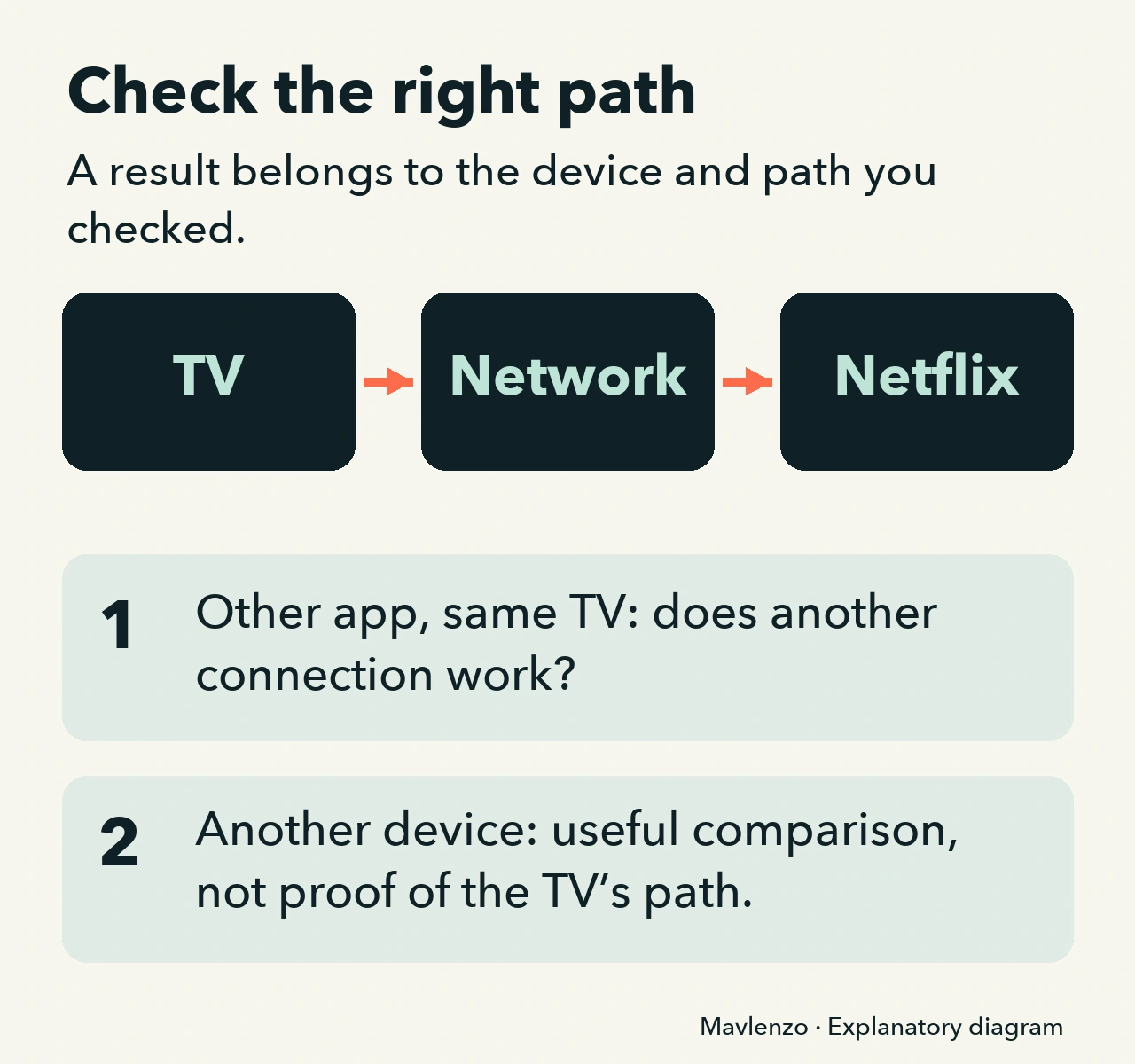
What does your result suggest you should do next?
Use these five situations as an observation guide. These are possible results for you to check, not tests performed by Mavlenzo. A comparison reduces uncertainty; it does not identify a cause on its own.
The network test fails and another app will not open
What you can say: The problem may extend beyond Netflix on this device.
Useful next action: Check its connection using the manufacturer’s instructions, then compare a second device on the same network.
Another app works, but NW-2-5 returns
What you can say: Some Internet access works; the Netflix connection still needs checking.
Useful next action: Record the time and the Netflix network-test result. Try again after the appropriate restart.
Several devices on the same network fail
What you can say: The observed problem involves several devices; this does not prove a faulty router.
Useful next action: Consider restarting your home network. On a shared network, contact its administrator.
The attempt works over Ethernet but fails over Wi-Fi
What you can say: You have a difference between two connection types to report.
Useful next action: Record both attempts and their conditions; examine Wi-Fi with the manufacturer or ISP without assuming a broken component.
Netflix works after an action
What you can say: The problem is absent during that attempt.
Useful next action: Record the action and time. If it returns, add the recurrence instead of erasing the first result.
Shared network or home network: choose the appropriate route
A hotel or shared network may restrict video streaming. If you do not manage it, ask the administrator whether Netflix is allowed and whether there is an incident. Do not restart their equipment. For cellular, satellite or mobile hotspot connections, Netflix advises checking with the provider whether the connection supports streaming.
At home, keep the error text and make one change at a time. The official procedure distinguishes two restarts:
- The device: unplug its power, wait at least 15 seconds, reconnect and retry. The English help specifies 3 minutes instead for a cable box. Do not apply that exception to every streaming box; check your model’s instructions.
- The modem and router: turn off the device, unplug the network equipment, wait 30 seconds, reconnect it, then wait at least a minute before turning the device on and trying again. Some equipment takes longer to reconnect.
Choose a time when the interruption will not disrupt other household activities. Power cycling and factory resetting are different actions: this decision guide does not ask you to erase your television or router settings.
Should you change DNS settings or run a speed test?
Netflix’s instructions for switching to automatic DNS apply only to PlayStation and Xbox. Do not use a console menu for another platform. If the connection still fails, give your results to the ISP; the official help asks it to check DNS and access to the relevant Netflix addresses, among other checks.
Our FAST.com tutorial shows where to read speed and latency. Keep the measurement with its device and time as additional context. A speed result on another device does not replace reopening Netflix on the device that showed NW-2-5. No speed threshold guarantees that this code will disappear.
Keep this worksheet before contacting your ISP
Copy the worksheet into a note. Write “not checked” for any comparison you have not made. It collects useful differences without requesting your password, public IP address or router credentials.
Exact code and time, including time zone: …
Device, model and known version: …
Network: home / shared / other …
Connection: Wi-Fi / Ethernet …
Network-test result on this device: …
Another app on this device: …
Another device on the same network: …
Action taken, followed by result: …
Netflix retry and any recurrence: …
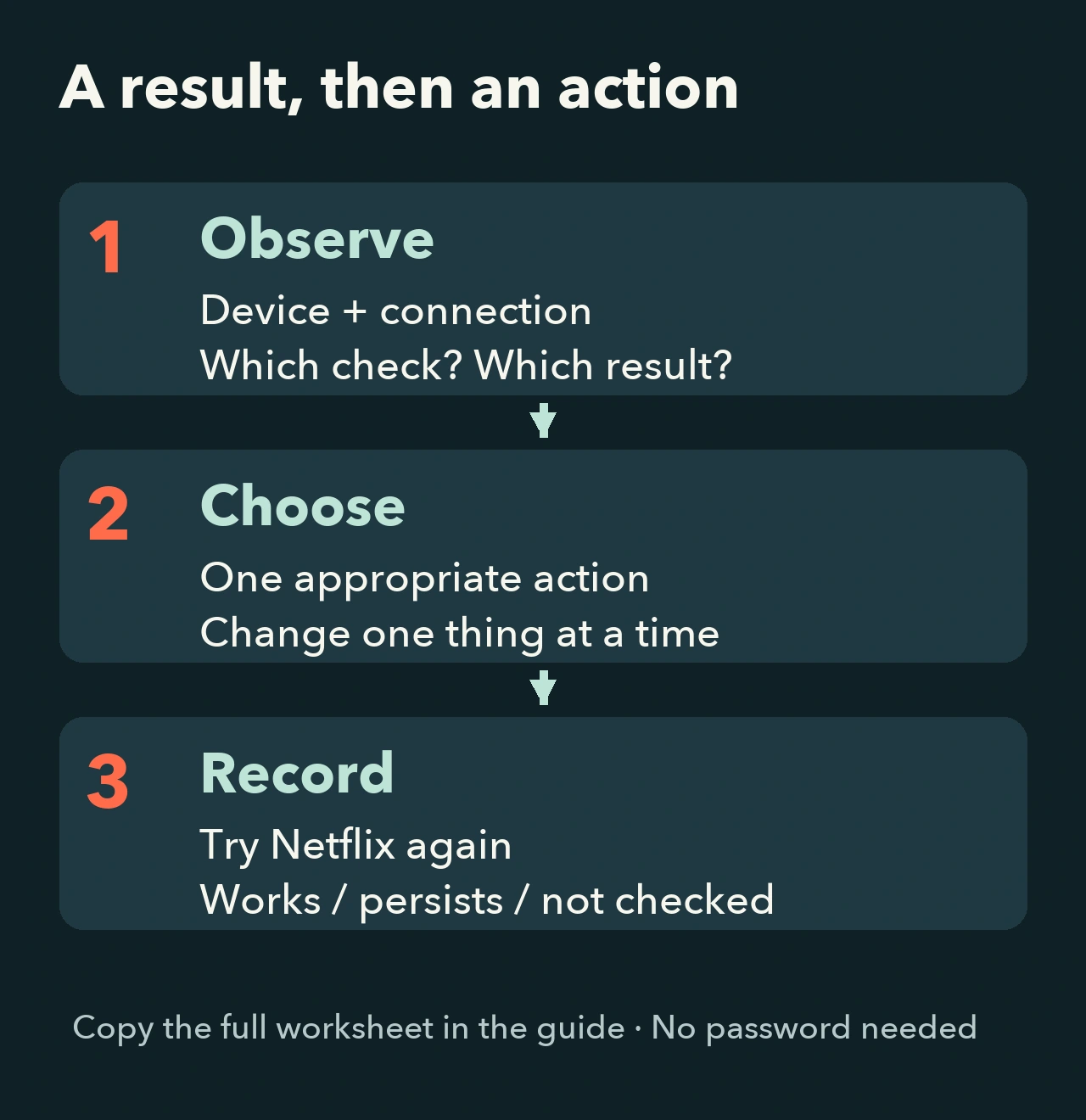
Fictional example: another app works on the TV, but NW-2-5 persists after restarting it; Netflix opens on a phone using the same Wi-Fi. The useful request is to check that television’s connection to Netflix, with these results attached. This does not prove that the TV or ISP is at fault.
Watch how to choose your next check
This original explanatory animation follows the decision prompts’ logic. Devices, connections and results are schematic. It does not reproduce the Netflix interface, a customer account or a repair; restart waits are not shown in real time.
Video transcript
- NW-2-5 means the device took too long to reach Netflix. This diagram is not a real test.
- Start with the device showing the code. Record its model and the time.
- If the option is available, run the Netflix network check. Record the result.
- Try another app on that same device. The result is an observation, not a confirmed cause.
- Compare a second device on the same network. A working phone does not validate the TV’s connection.
- Record whether the problem affects one app, one device or several devices.
- On a shared network, contact its administrator to check access to Netflix.
- Do not restart equipment on a network you do not manage.
- At home, choose the appropriate restart, then retry Netflix. Change one thing at a time.
- Restarting the device and restarting the modem and router are different operations.
- Follow the times and instructions in the guide. Waiting periods are not shown in real time.
- Netflix’s automatic DNS instructions apply only to PlayStation and Xbox consoles.
- On another device, follow its help or ask your ISP. Do not use a console’s menu.
- Record the device, connection, check and result. Keep “not checked” for attempts you have not made.
- This worksheet helps the ISP check the affected connection. It does not need a password.
- Actually try Netflix again. If the error returns, note the time and the action already attempted.
- A successful attempt is not a lasting guarantee. Keep the results for the next step.
If the code persists
Use the worksheet with your ISP or, for a shared network, its administrator. Ask for a check of the affected connection rather than describe “Internet that sometimes works.” Before ending the conversation, retry Netflix and record the result. If the code has disappeared but playback now stalls, our playback buffering guide addresses that different symptom.
Sources and method
Procedures are documented in Netflix’s English and French help, consulted on October 30, 2026 (UTC). These are general instructions, not measurements of Canadian networks. Mavlenzo’s decision prompts, worksheet, illustrations and animation organize observations and possible next actions. No device, Netflix account or restored connection was tested for this article. Mavlenzo is an independent publisher, unaffiliated with Netflix.