If an app stops working on your Samsung TV, do not start by wiping all of Smart Hub. Identify what fails, consult the model’s help and choose an action whose consequences you understand. Restarting the TV, deleting one app and resetting Smart Hub have different purposes and effects.
This guide compares effects documented by Samsung Canada, read on November 1, 2026. It offers a way to decide and check the result; it does not report a physical TV test or a successful repair.
Describe the failure before choosing an action
On the same TV, record whether the app never opens, closes after launching, refuses a sign-in or opens without playing content. Try a second app you normally use. One failing app calls for a different investigation from several inaccessible apps, but that comparison does not prove the cause.
A missing Home shortcut is another case. Samsung’s Canadian app-management guide separates installing an app from adding it to Home. It also identifies internet access, Samsung-account sign-in and model compatibility as relevant prerequisites. If the screen asks you to complete setup, examine that request before looking for a reset control.
If the app is absent from the store, confirm compatibility with Samsung or the app publisher. Samsung explains that some apps are no longer offered when the hardware cannot meet their requirements. A reset therefore does not establish that the app will return.
Choose the intended effect, not just a “reset” label
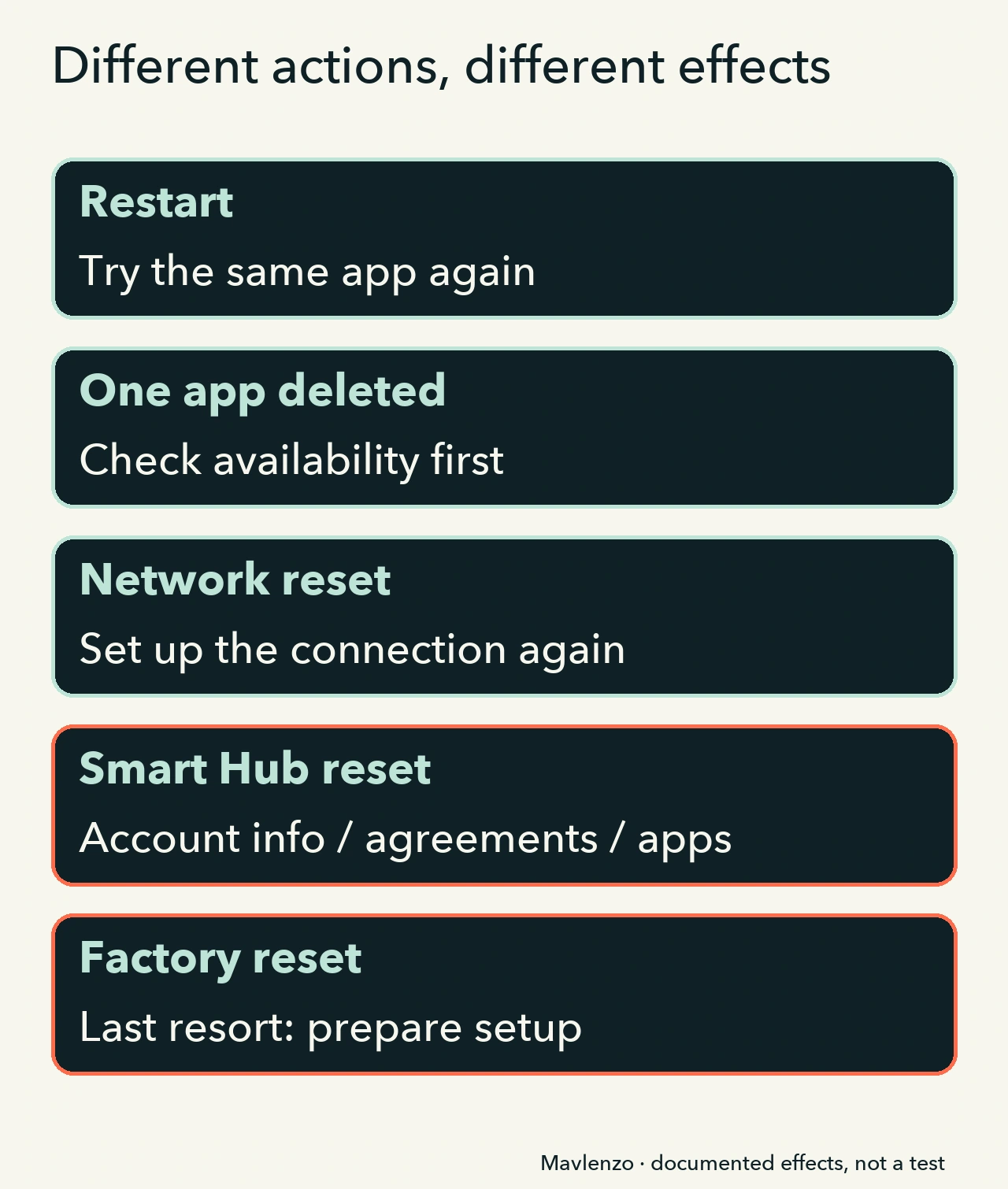
Samsung already documents the procedures. Our matrix helps you compare their scope before using them. It is not a sequence to complete from top to bottom: stop when the need disappears or the next action is not justified.
| Possible action | Documented scope | Your check |
|---|---|---|
| Soft restart | Samsung distinguishes this from a factory reset and suggests it when the TV or apps respond poorly. | Follow the restart instructions for the model, then reopen the same app. Do not confuse it with Reset Smart Hub. |
| Delete one app | The action removes the app. Samsung documents installation and deletion separately. | First confirm it is still available for this TV and prepare your private sign-in information. After reinstalling, repeat the action that failed. |
| Reset Network | Network settings are erased and the connection must be set up again. | Use this route for a connection investigation and prepare the network information. It does not replace investigating a single app. |
| Reset Smart Hub | Smart Hub returns to its defaults; information related to Samsung and linked accounts, service agreements and Smart Hub apps is deleted. | Understand the setup you will need to repeat and check access arrangements before confirming. Afterwards, assess the same symptom. |
| Factory reset the TV | The TV returns to its default settings. Samsung presents this as a last resort. | Prepare setup information and follow the exact manual or support instructions. One app failure does not automatically justify this step. |
The effects and distinctions come from Samsung Canada’s TV-reset guide and its Canadian network setup and reset guide, in French. Samsung also recommends checking for a software update before a reset. An available update may help; its presence does not establish the fault’s cause.
One app closes: prepare a limited attempt
Suppose one app closes while another opens on the same TV. This is a decision scenario, not a result measured by our team. Record the app, when it closes and any message. Consult its support information for the model, then choose one appropriate check.
If you are considering reinstalling, confirm that the app is available before deleting it. Do not assume sign-ins or preferences will survive: prepare your access information without publishing it. If you cannot identify the model or do not understand the action’s effect, stop and ask support for a specific instruction.
Controls labelled Clear Data and Clear Cache must not be treated as interchangeable. We do not provide a universal Samsung TV path to these controls. Follow only the help matching your device; do not transfer a Galaxy phone procedure or another country’s menu sequence to your television.
In the video: observe, choose, check
The original animation shows how an action’s scope changes the next decision. Its screens are diagrams, not filmed Samsung menus. The final outcomes are possibilities to check at home, never a simulated repair. The video is silent, with English captions and a transcript.
Video transcript
- One app or several? Describe the symptom on the same television.
- The comparison guides the next check. It does not prove the cause.
- Record the model, software, app and message before making changes.
- Choose one action and repeat the check. Keep the starting state.
- Samsung distinguishes a soft restart from a factory reset.
- Also check for software updates. Then repeat the original task.
- Before deleting an app, confirm it is still available for this TV.
- Prepare sign-in information privately. Do not assume it will be retained.
- Resetting the network means setting the connection up again.
- Smart Hub deletes account-related information, agreements and apps.
- Samsung presents a factory reset as a last resort.
- Unsure of the effect or model? Stop and ask for relevant support.
- Repeat the same starting task. Record the result, without a lasting guarantee.
- Works, still fails or not tried: these are outcomes to observe at home.
Keep a record for the next decision
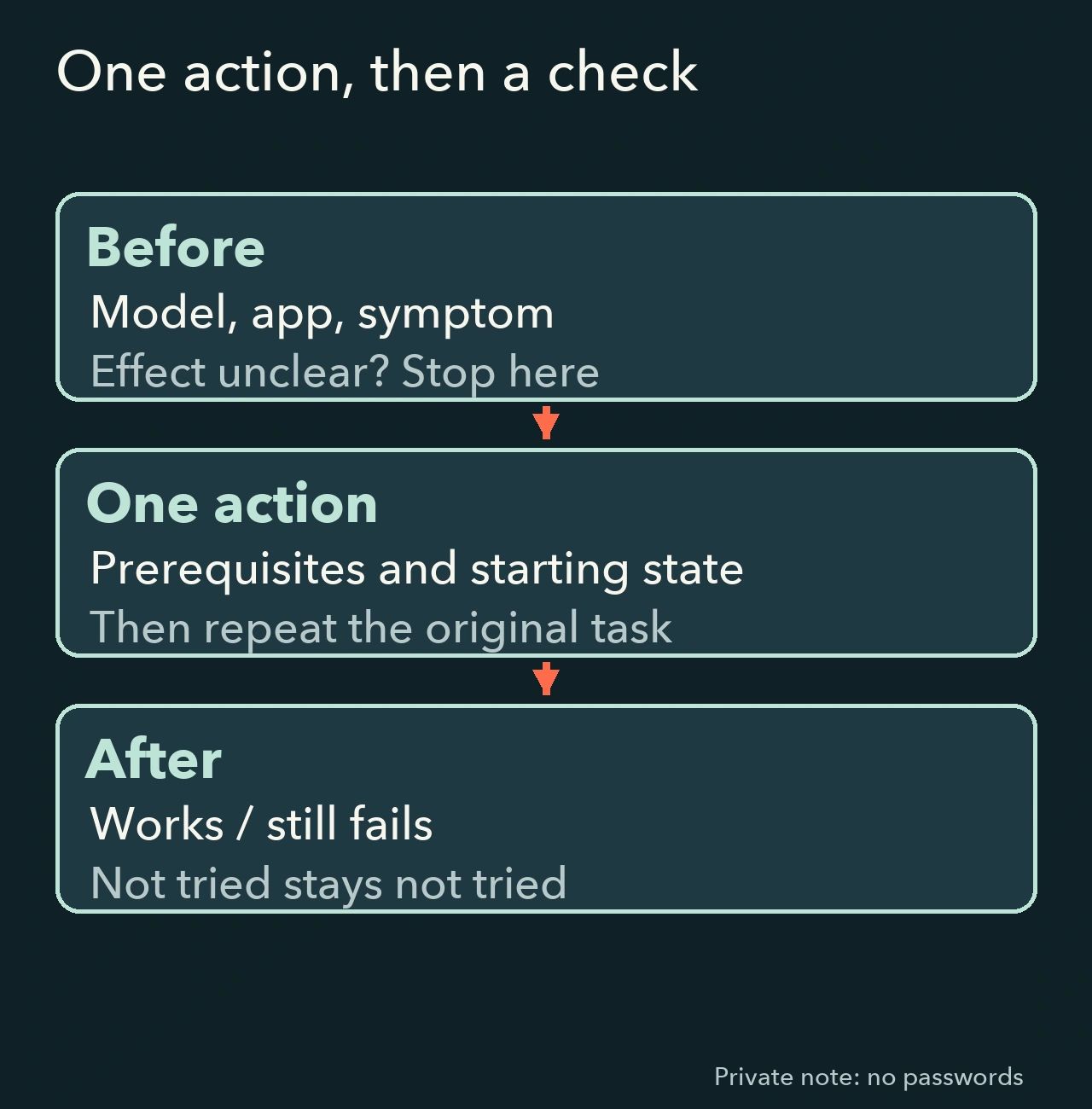
Copy these headings into a private note: TV model and software; app and version if accessible; exact symptom; other app compared; intended action and effect; result of the new attempt. Use “not tried” for a check you have not performed. Passwords, PINs and serial numbers do not belong in public comments.
After the action, repeat the same starting task. If it still fails, retain the result and original configuration instead of cycling through resets. If it works again, record that result and any recurrence too: one successful attempt does not guarantee a lasting repair.
Menus and labels can vary by model and software. The TV’s own manual and Samsung support help resolve those differences; this guide supplies neither a universal PIN nor a guaranteed path for every device.
For installing a player, our Samsung TV and Tizen guide covers initial preparation. For video that keeps loading rather than an app that closes, use our playback-buffering checklist. Explore other tasks in our practical guides.
Sources and method
Technical facts come from the cited Samsung Canada documents, read on November 1, 2026. The same publisher’s French and English pages are not independent corroboration. The matrix, worksheet and animation are Mavlenzo’s documentary synthesis; no device, account, deletion or restored playback was tested. Model-specific steps still need confirmation in the TV’s manual before use.