On a computer, open the YouTube player’s cogwheel, then its speed menu. Choose an available value; select Normal to undo that change. In our English-interface recording, selecting 1.0 / Normal returns the display to 1.00x.
This procedure covers the computer player. It helps you slow down a tutorial step, move through a familiar section faster and restore the original pace, while keeping the menu setting separate from temporary hold-for-2×.
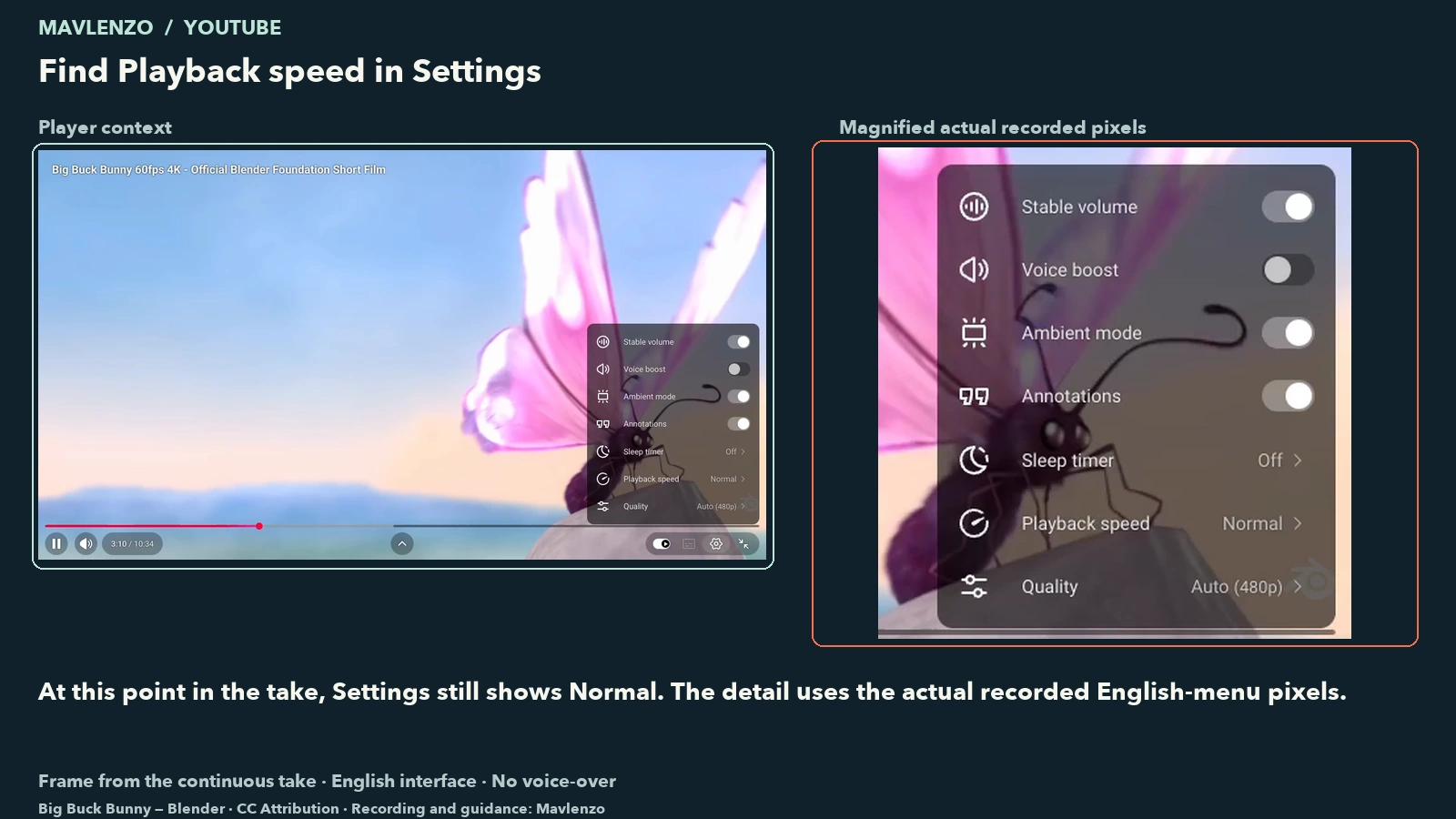
Change the speed and check the result
- Start the video and reveal its player controls.
- Open the cogwheel, then Playback speed, as labelled in our recording.
- Choose an available value. Watch a short section to decide whether the pace works for you.
- Reopen the same menu and choose Normal to restore the original pace.
This route is documented in YouTube’s official computer help. The values offered depend on the player: an option visible in our example is not a promise that every device or account has it.
The action recorded without an internal cut
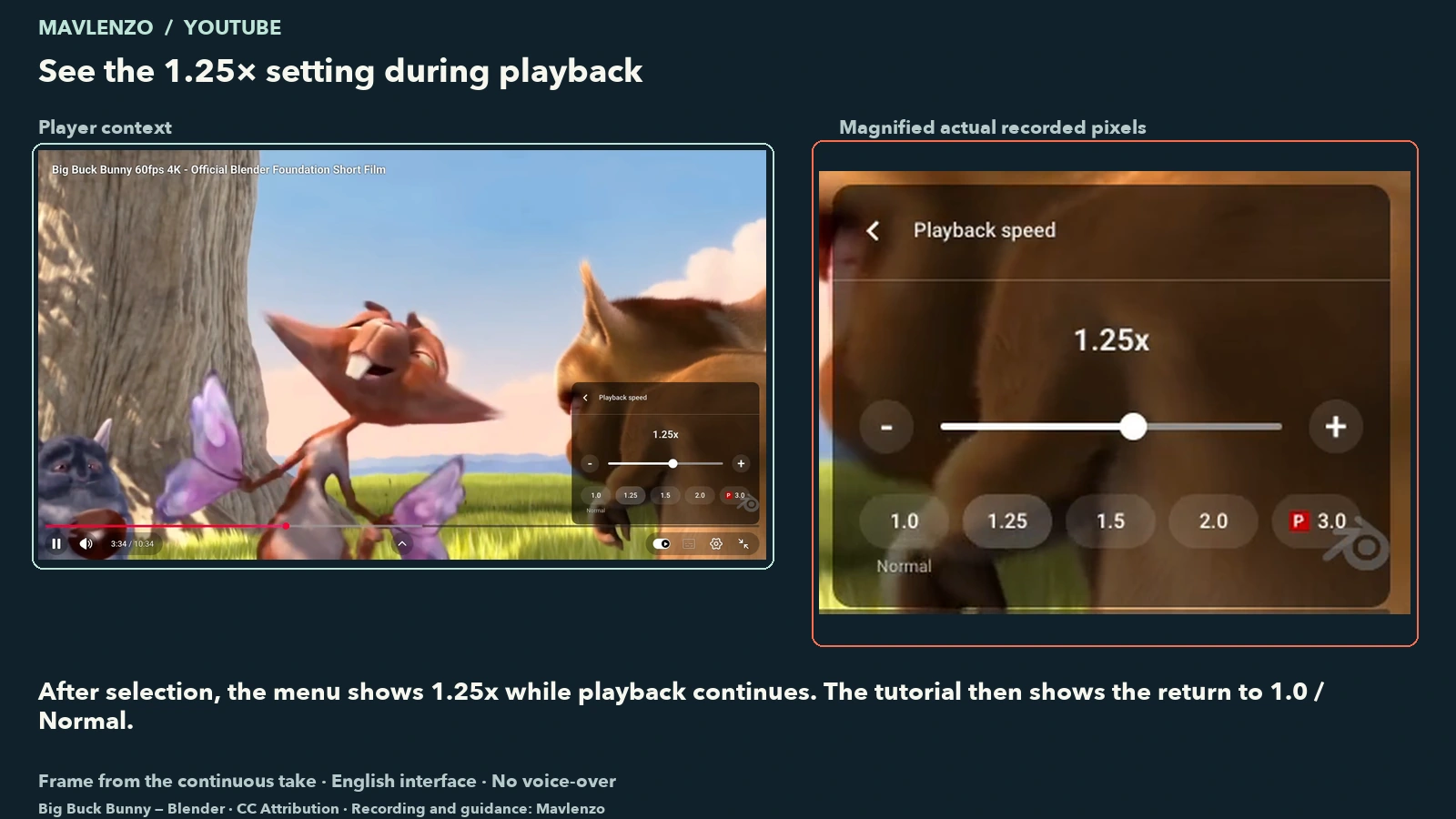
Our sequence shows a video playing, the menu opening at 1.00x, a change to 1.25x, and a return to 1.00x. The playback counter advances during the demonstration. The demonstration file itself has not been sped up to simulate the result.
Video transcript
- Start the video at its normal speed.
- Open Settings, then Playback speed. The recorded controls are in English.
- The menu shows 1.00x. Choose 1.25 for this example.
- The menu now shows 1.25x while the video keeps playing.
- Return to 1.0 / Normal. The menu shows 1.00x again.
Use the value shown in the menu to check the setting. Motion alone does not tell you whether the speed changed, the video jumped to another point or the content simply changed pace.
Choose an action for the problem in front of you
| Your need | Action to try | Useful check |
|---|---|---|
| A detailed action passes too quickly | Choose an available slower value and replay that step | Be able to identify and repeat the action |
| An explanation is already familiar | Try a faster value | Keep understanding the steps without guessing |
| You want to undo a speed change | Return to Normal in the same menu | Read the normal value displayed there |
| Playback speeds up while you hold a click | Release the mouse button | Separate temporary fast-forward from the menu setting |
These are practical suggestions, not a scientific measurement of comprehension. During our recording, the menu remained open after choosing 1.25x, so we could select 1.0 / Normal directly in that panel. This describes the interface we used, rather than a guaranteed behaviour across every version.
Menu speed, holding for 2× and keyboard shortcuts
YouTube documents another control: click and hold on the video for 2× fast-forward, then release to stop fast-forwarding. This temporary action is separate from choosing a value in the speed menu. It is included here from the official help; our recorded sequence demonstrates the menu and does not claim to test holding for 2×.
YouTube’s official shortcut list also assigns > to increasing playback speed and < to decreasing it. Click the player first and check the menu afterwards. The keys needed to type those characters vary by keyboard layout; we do not claim to have validated every layout.
Is the setting missing on your screen?
First check the device type. YouTube says playback-speed control may be unavailable on some smart TVs and streaming devices. This computer guide is therefore not a universal TV procedure. Read the help section for your device before treating a different menu as an account problem.
This capture does not establish a universal speed range, 4× access for everyone or persistence between devices. No unobserved fault or failed test has been added to the demonstration.
Method, limitations and sources
The instructions were checked against YouTube’s official English and French computer help and its shortcut list, read on 26 October 2026 (UTC). No source update date has been inferred where one was not displayed.
How this demonstration was made. Mavlenzo continuously recorded the YouTube player on 26 October 2026 (UTC), on a Mac using OBS Browser. The retained interval is 48 seconds: playback starts at Normal, changes to 1.25x and returns to 1.00x. The recorded controls are in English; the same take serves the French and English versions with localized explanations and captions, without voice-over. Framing and overlays were added after capture, with no internal cut or postproduction speed change. Both images come from the same take and show the actual menu pixels alongside a magnified detail.
Film source: Big Buck Bunny — Blender / Blender Foundation, under the Creative Commons Attribution licence displayed on YouTube. The film and interface remain their creators’ work; Mavlenzo supplies the recording and explanations. This control demonstration is neither a physical-TV test nor a calibrated playback-speed measurement.
For the text displayed over a video, use our separate guide to YouTube captions on a computer. Explore other procedures in our practical guides. These YouTube controls are independent of the IPTV subscriptions sold by Mavlenzo.