If a Netflix title shows 4K in your TV’s built-in app and HD on your HDMI player, record that difference before changing a setting or buying a cable. Compare the same title on both routes, then repeat with an available reference title. If the page already shows 4K and the picture looks blurry, note how the same scene changes during playback.
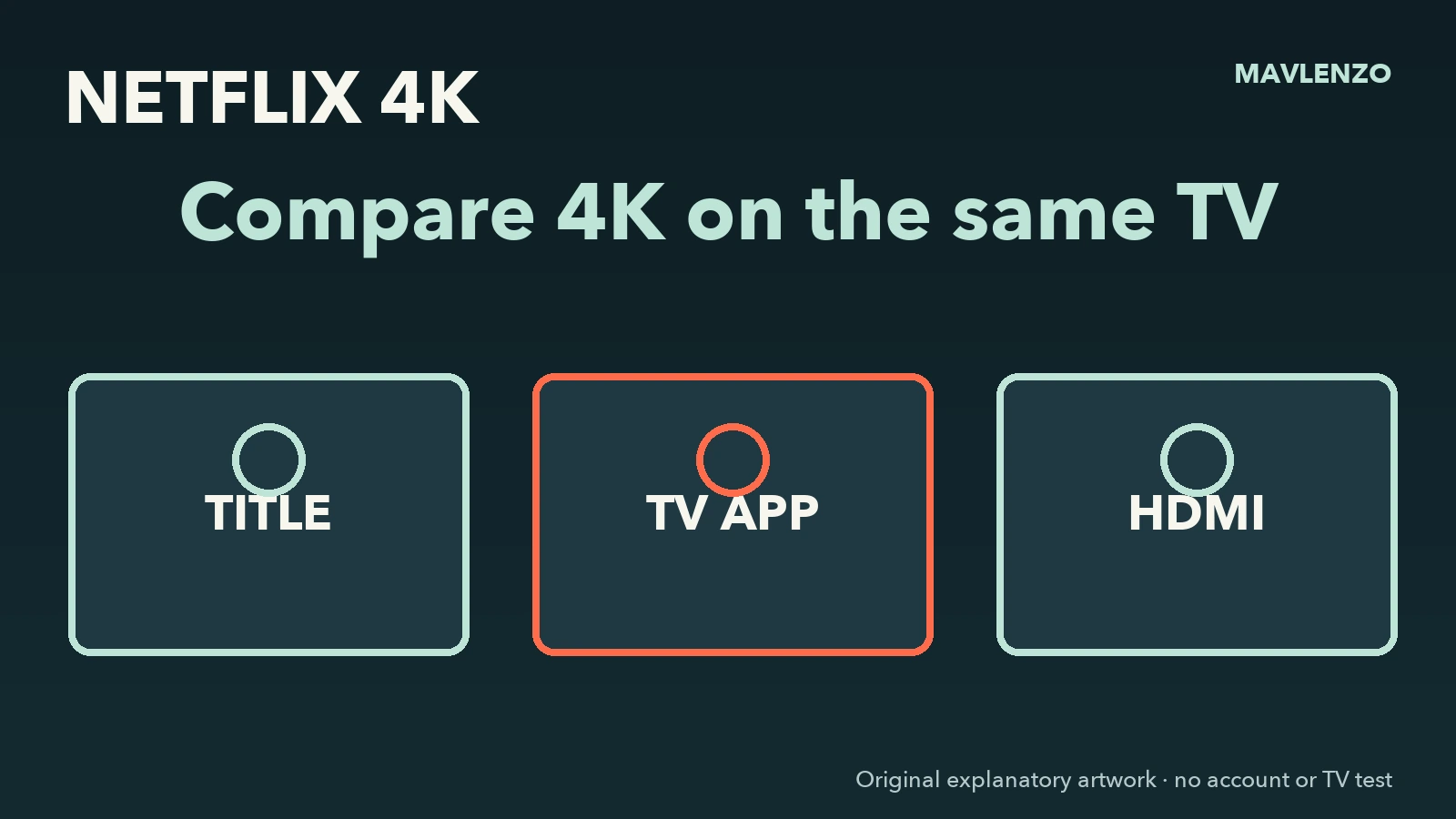
Record two observations for each playback route
The Netflix title page shows the quality offered for the title on the device you are using. Netflix can adapt quality during playback as the connection changes. A soft picture at the start can improve. Keep the title label and how the scene looks in separate fields. Netflix video quality help
Copy the label exactly as shown. HD can mean 720p or 1080p. Some interfaces display only Dolby Vision even when the title is offered in 4K HDR on that device. Record “Dolby Vision” and leave the resolution unknown. Use the same rule when the page shows no resolution label. Resolution and dynamic range labels
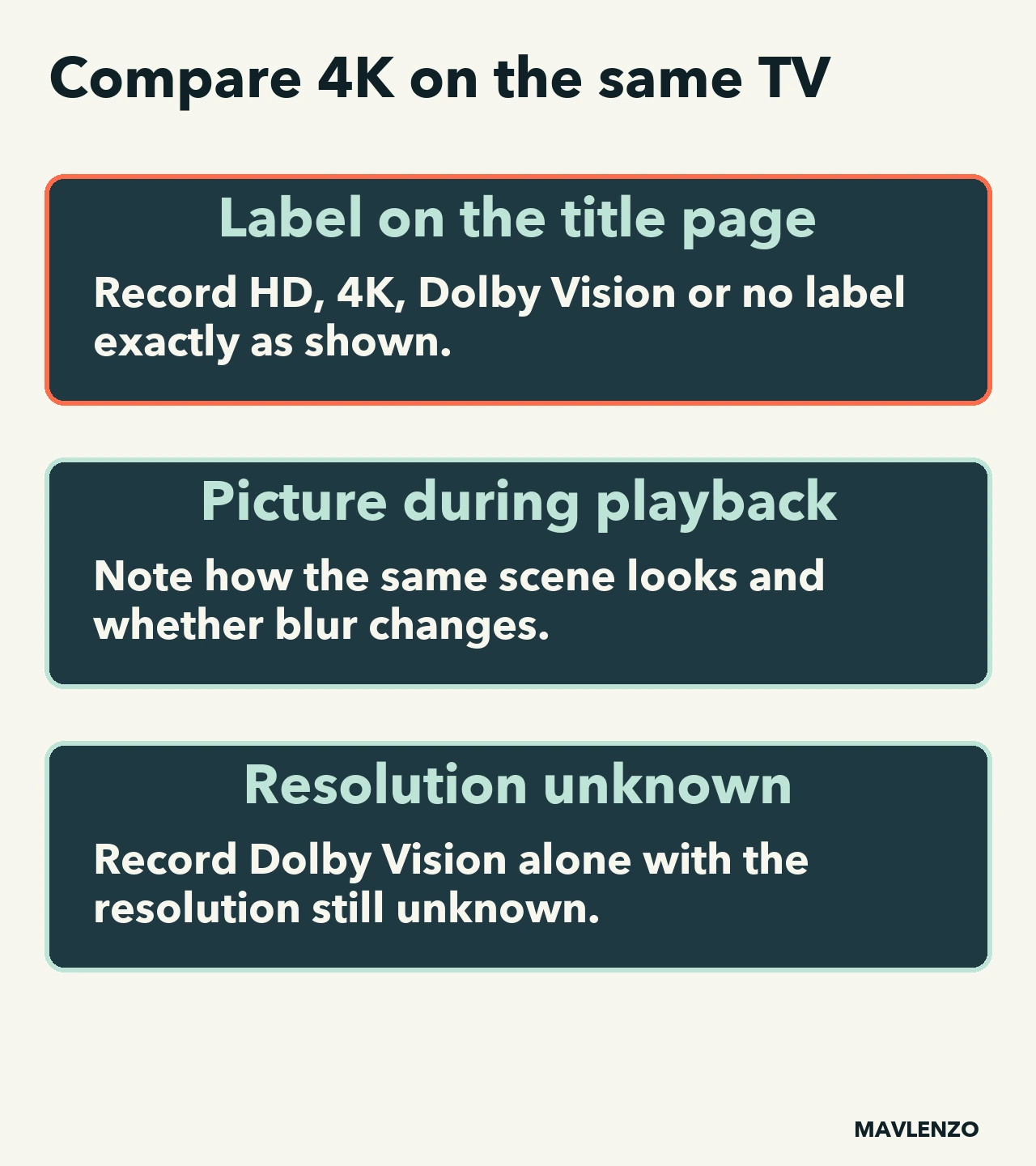
Fill in four cells on the same television
Keep the same Netflix profile, television and episode for each comparison. Use the built-in TV app for one route and your usual HDMI player for the other. Choose a second title Netflix lists for checking 4K if you can find it in your catalogue. Play the same scene of each title on both routes. Keep the trials close together and record any connection changes. Leave a cell “not checked” if a route or title is unavailable. Netflix reference titles
| Title | TV app | HDMI player |
|---|---|---|
| Chosen title | Label ___ Picture ___ |
Label ___ Picture ___ |
| 4K reference | Label ___ Picture ___ |
Label ___ Picture ___ |
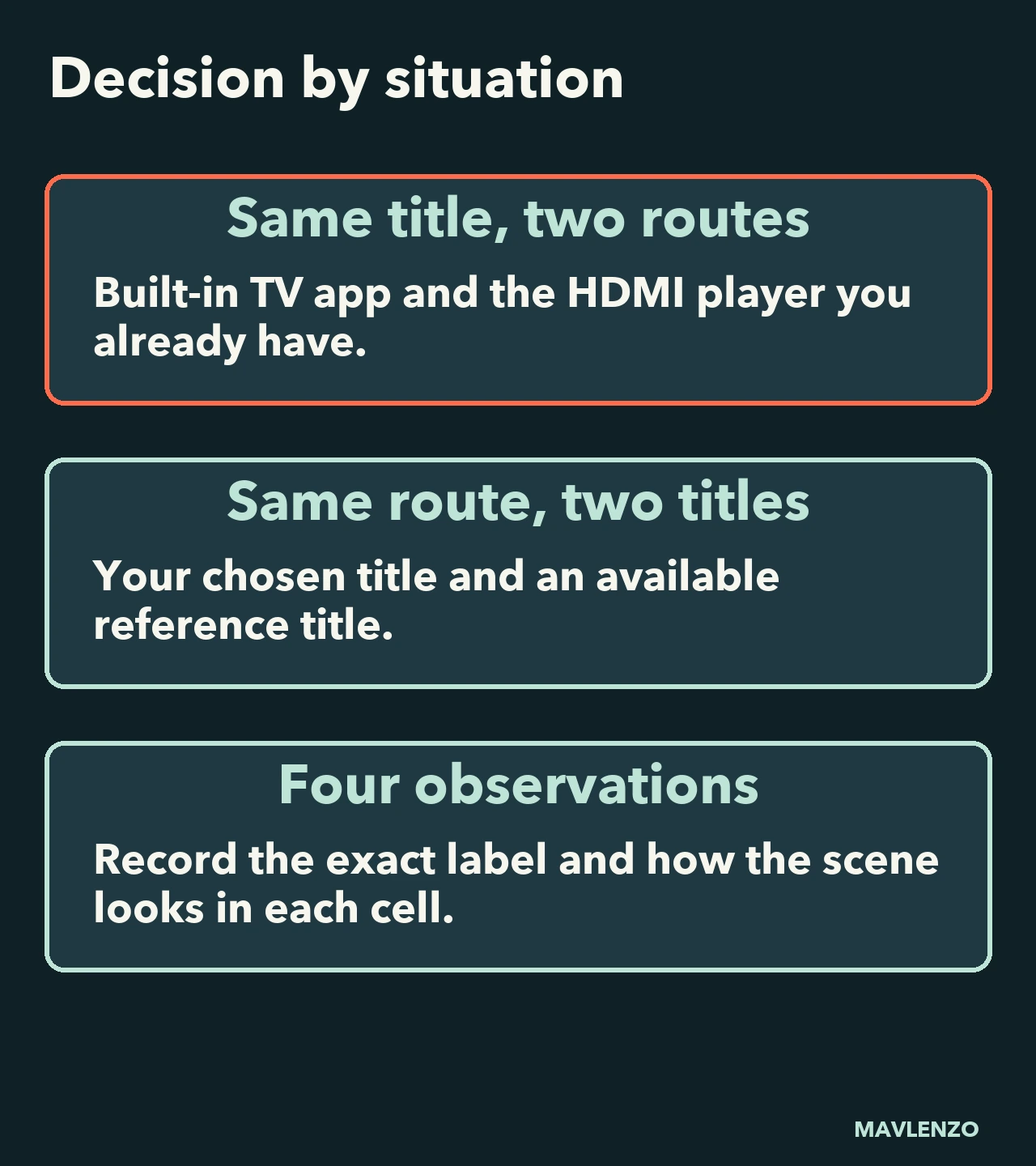
Choose the next check from the difference
- Both titles show 4K in the TV app and HD over HDMI. Check the player’s capabilities and the whole HDMI route, including any receiver, its ports and the cables. Switching apps and players changes several elements at once. Keep the exact cause open before replacing a cable.
- The chosen title shows HD on both routes and the reference shows 4K. Start with the format offered for the chosen title or episode. The reference shows that the 4K label is visible on these routes in this example.
- The title page shows 4K and the scene looks blurry. Note whether the picture improves after playback starts or varies later. Check the device connection and profile playback settings. Netflix says quality can vary with the connection and that account settings can affect data usage. Keep the actual playback resolution unknown if you have no measurement.
- Resolution remains unknown in several cells. Keep the original labels and check whether your plan and device support the quality you want. Leave the cause open when you have only an HDR label or an empty cell.
These are fictional examples. To check the requirements for your HDMI route, use the device section in Netflix Help and the specifications for the models involved. Our FAST.com tutorial shows how to read a connection speed test. Devices, connection and playback settings · Read FAST.com results
Watch how to read the worksheet
The animation follows the four cells through fictional examples. It shows how to choose the next check. The labels illustrate the worksheet and the transcript carries the explanations from the silent video.
Video transcript
- Keep the same profile and television
Record two titles on both routes. - Both titles show 4K on the TV app and HD over HDMI
Check the full HDMI route. - One title shows HD on both routes
Check the format of that title. - Dolby Vision alone leaves resolution unknown
Copy the label exactly as shown. - The page shows 4K and the picture looks blurry
Note whether blur changes during playback. - Keep all four observations
A difference alone does not identify a cable.
Share the observations with support
Record the title and episode, TV and player models, HDMI route, displayed labels and when the picture changes. Keep sign-in details private. Our Canadian plan comparison covers plan differences. Choose a Netflix plan in Canada
This documentary guide uses the Canadian French and English versions of Netflix Help read on November 10, 2026, Montréal date. Mavlenzo created the worksheet, figures and animation. The examples are fictional and carry no device test or measured playback resolution. Official documentation consulted