If a voice describes actions and scenery during Netflix playback, check the title’s Audio Description track. If a voice reads buttons and menus as you move through them on an Apple TV 4K box, check VoiceOver. These features serve different needs: changing a Netflix track does not turn off the box’s screen reader.
Start by identifying the voice you want to change. Keep any accessibility support you find useful. This documentary guide covers Netflix running directly on an Apple TV 4K box; it does not describe the settings of the Apple TV app installed on another brand of television.
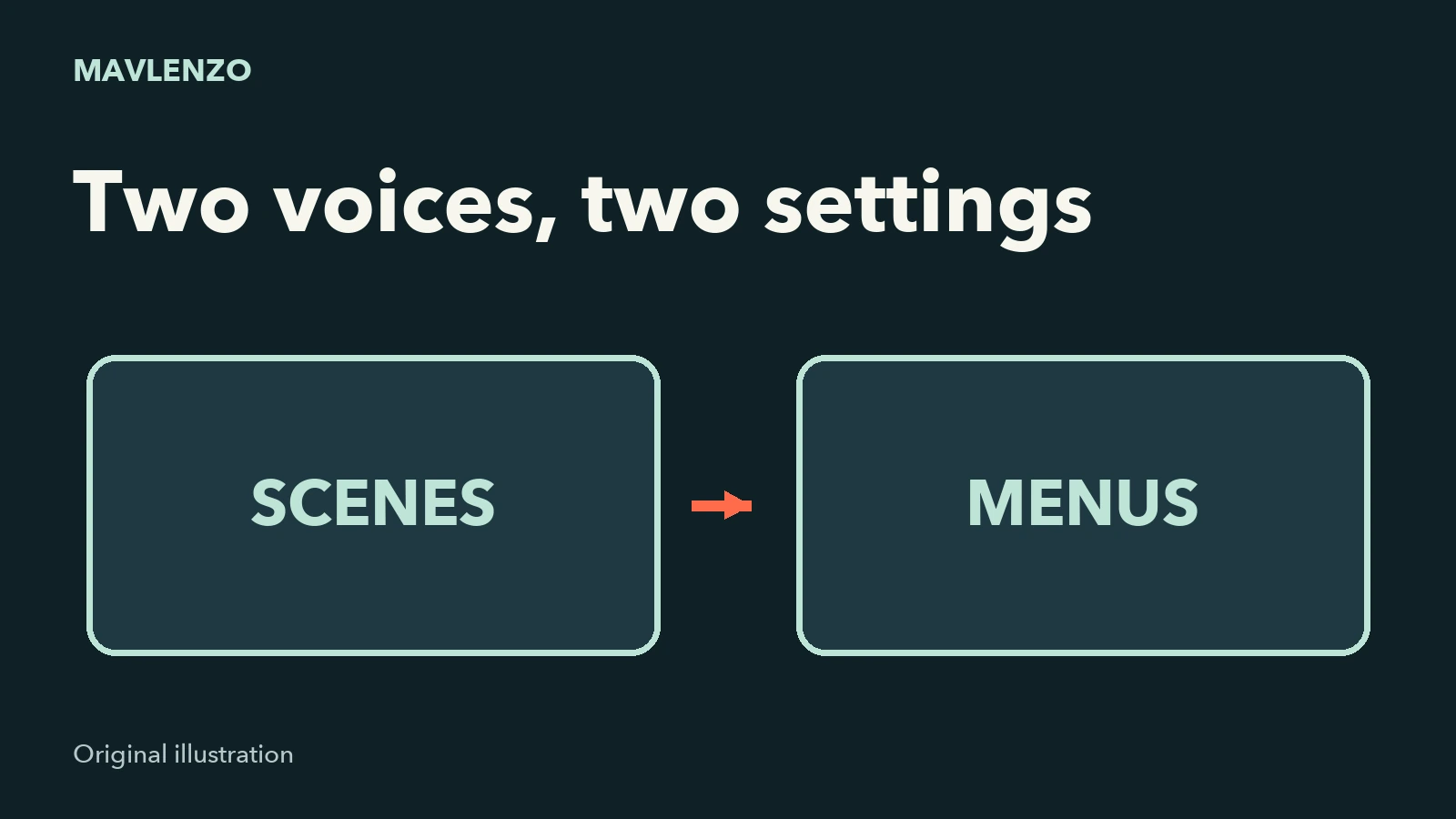
Listen to what the voice describes
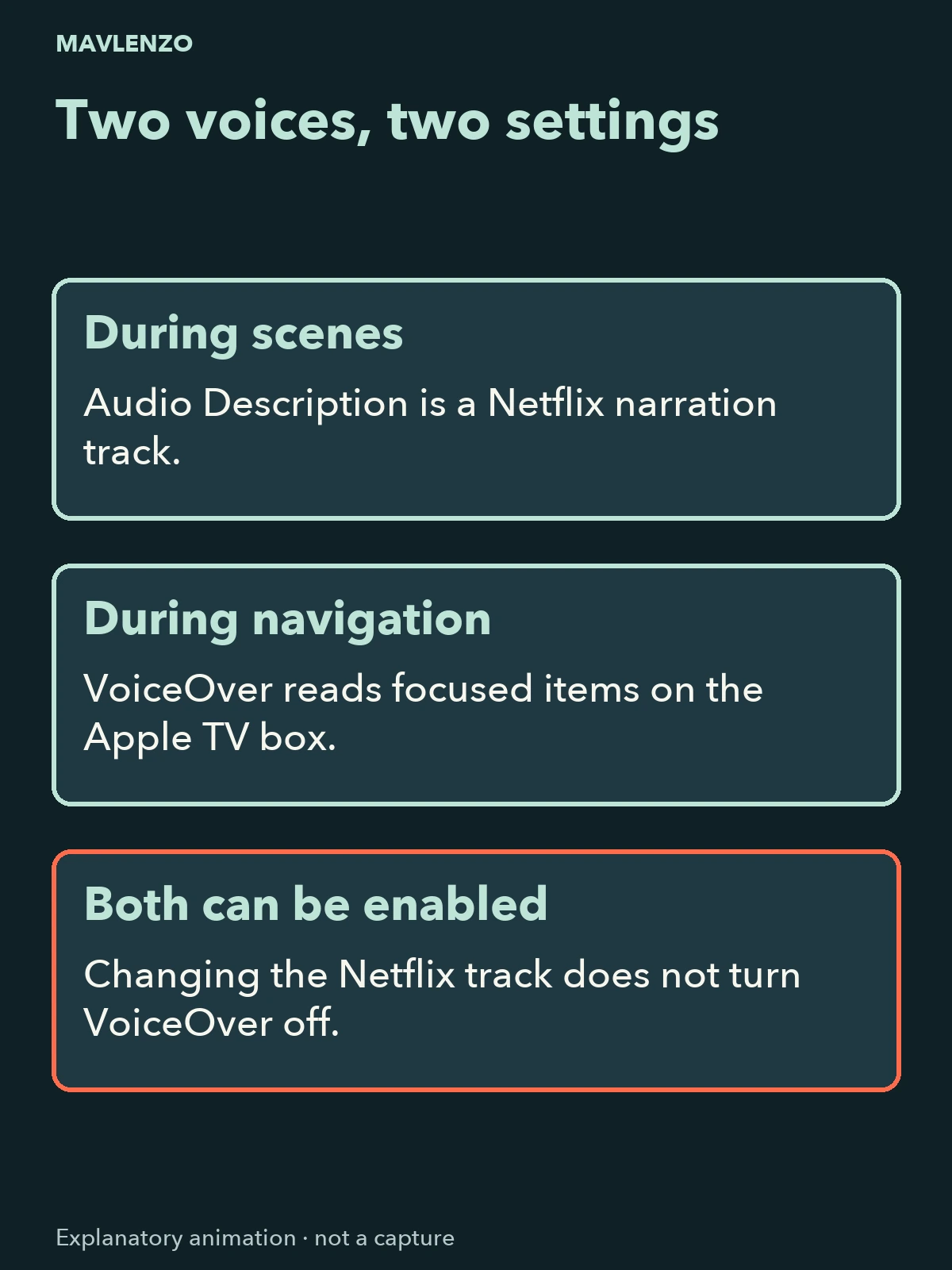
Netflix Audio Description provides optional narration of visual elements in a scene. According to Apple’s guide for the box, VoiceOver speaks menu or text items as you move through them.
- The voice narrates the film: compare a scene whose actions you recognize, then check the Netflix audio track.
- The voice follows navigation: return to the box’s menus and notice whether it reads the focused item. Check VoiceOver.
- You hear both: treat the choices separately. Changing one can leave the other voice enabled.
These observations help choose a setting; they do not establish a fault. If all sound is missing, our Apple TV no-sound guide addresses that different task.
For scene narration: choose the Netflix track
Follow Netflix’s procedure on the title you are watching. Available languages can vary, even between seasons or episodes. Our illustration uses “English” to explain the choice; it does not confirm that a particular English track is offered for your title in Canada.
- Start playing the film or episode in Netflix.
- On the Apple TV remote, swipe up or press the up arrow to display the controls, as Netflix describes.
- Open Audio & Subtitles. The position and presentation can vary; use the choices actually displayed.
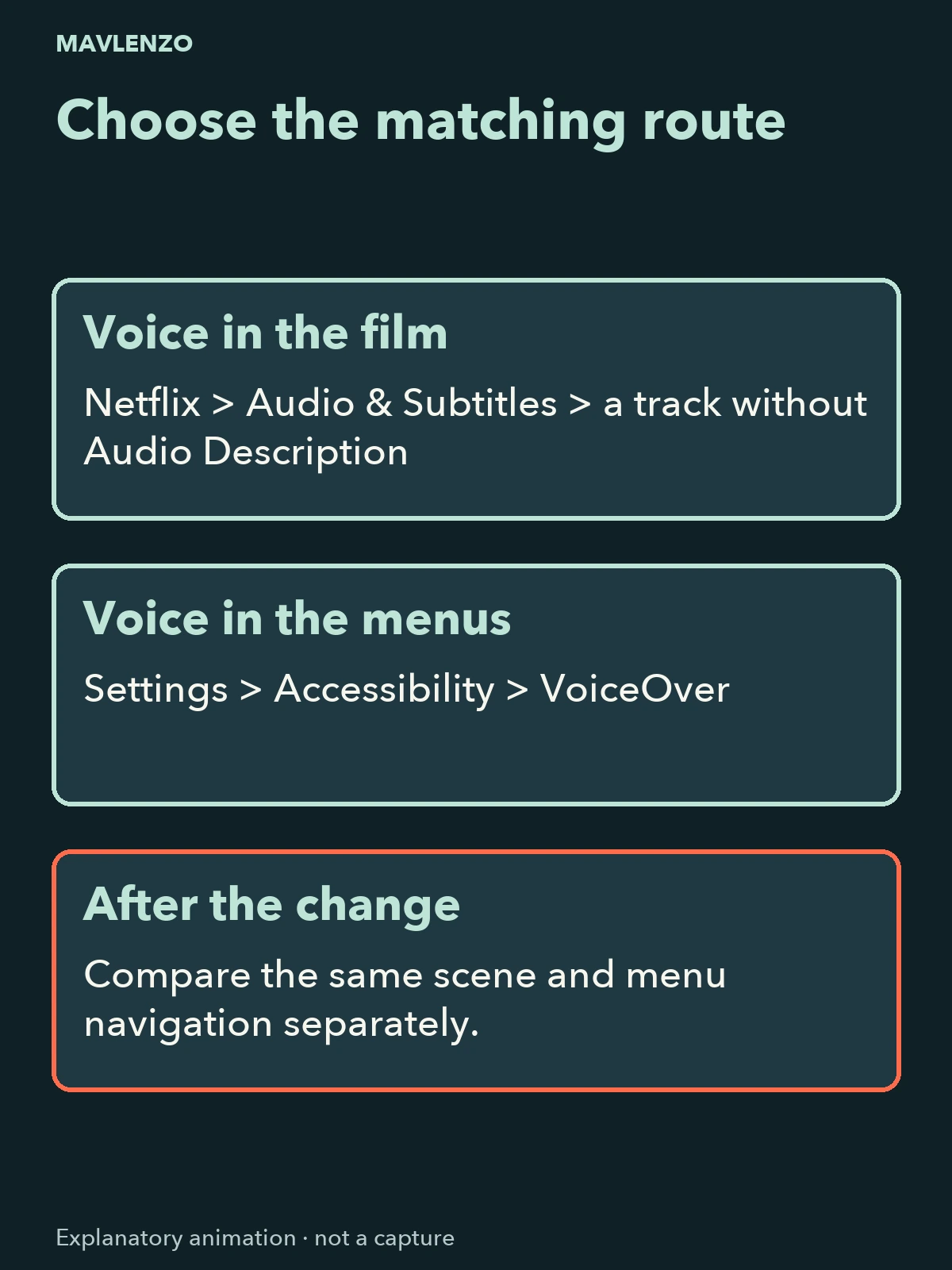
- Under Audio, choose an available track without Audio Description in its name if you want to remove scene narration. To enable it, choose a track bearing that label instead.
- Resume the same scene and check the effect. The result to observe is scene narration, not spoken menu navigation.
The subtitle choice is separate from the audio track. Turning off on-screen text is not the action described here. If no suitable audio choice is offered, consult Netflix’s title and device guidance rather than resetting the box.
For spoken menus: check VoiceOver
This route uses the settings of the Apple TV 4K box. If you rely on VoiceOver to navigate, keep it enabled: you can change Netflix scene narration separately.
- Open Settings on the box.
- Go to Accessibility → VoiceOver.
- Select VoiceOver to turn it on or off according to your needs. If only spoken menus are unwanted, turn this feature off.
- Move through the menus again to check the effect, then return to Netflix. If scenes are still being described, check the title’s audio track separately.
Apple distinguishes VoiceOver navigation and exploration modes. Available gestures therefore depend on the mode and remote. Use the matching VoiceOver guide if you need help reaching the setting; this route does not replace its accessibility controls.
Watch the two actions in an animation
This original animation shows the two routes and the effects to check. Its cards, pointer and changing states are explanatory diagrams, not recorded Netflix or Apple screens. It has no audio; turn on the player’s captions or open the transcript.
Video transcript
- A voice describes scenes? Check the Netflix audio track. A voice reads menus? Check VoiceOver.
- During Netflix playback on Apple TV, press the up arrow or swipe up on your remote.
- Choose Audio & Subtitles. Controls can vary; follow the choices actually shown.
- Under Audio, choose an available track without Audio Description. English is only an example here.
- Resume the same scene. Changing the track does not turn off VoiceOver or guarantee a permanent preference.
- If the voice reads menus on the Apple TV 4K box instead, open Settings.
- In Settings, choose Accessibility. This route is for the box, not an app on another television.
- Open VoiceOver. This feature speaks menu or text items as you move through them.
- If spoken menus are unwanted, turn VoiceOver off. Keep it enabled if you need this support.
- Check scenes and menus separately. Both features can be enabled; if the issue remains, use the matching help.
If the voice returns or does not change
Record the title and episode, chosen track, box model and tvOS version. Describe whether the voice follows scenes, navigation, or both. These details help you find the right guidance without sharing a password.
Netflix also has help for Audio Description that will not turn off. The track choice above does not guarantee that your preference will be retained. In that case, check the model and version covered by the help page before following another procedure; keep the Netflix choice separate from the box’s setting.
Sources and method
Official documents read on November 9, 2026 (UTC): Netflix — Audio Description and Apple Canada — VoiceOver on Apple TV 4K, with their French versions. The French Apple view showed tvOS 26 and the English view tvOS 27; the inspected sections gave the same Accessibility → VoiceOver path. Menus can change, so check the guide for your version.
The two figures and animation are original Mavlenzo explanations based on those documents. We did not test a box, Netflix account, audio track or successful fix for this article. For device preparation, see our Apple TV guide. Mavlenzo is affiliated with neither Netflix nor Apple; this guide does not provide access to their services.