Before checking compatibility, downloading firmware or asking for support, record four separate values: model code, serial number, TV software version and app version. They answer different questions.
This documentary guide relies on Samsung Canada support. We did not operate a television or install an update. Menus may vary by model and software.
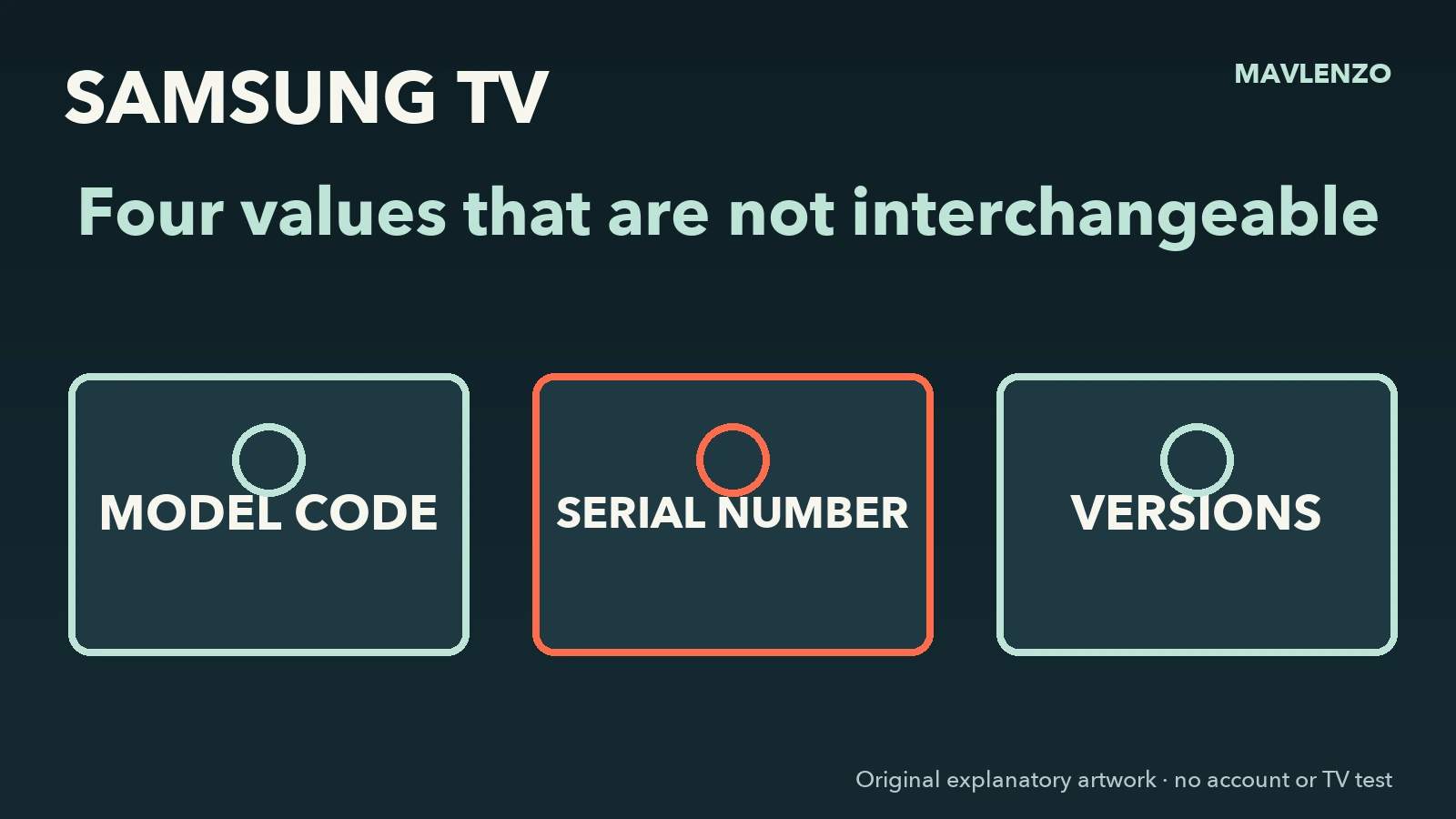
Which value should you use?
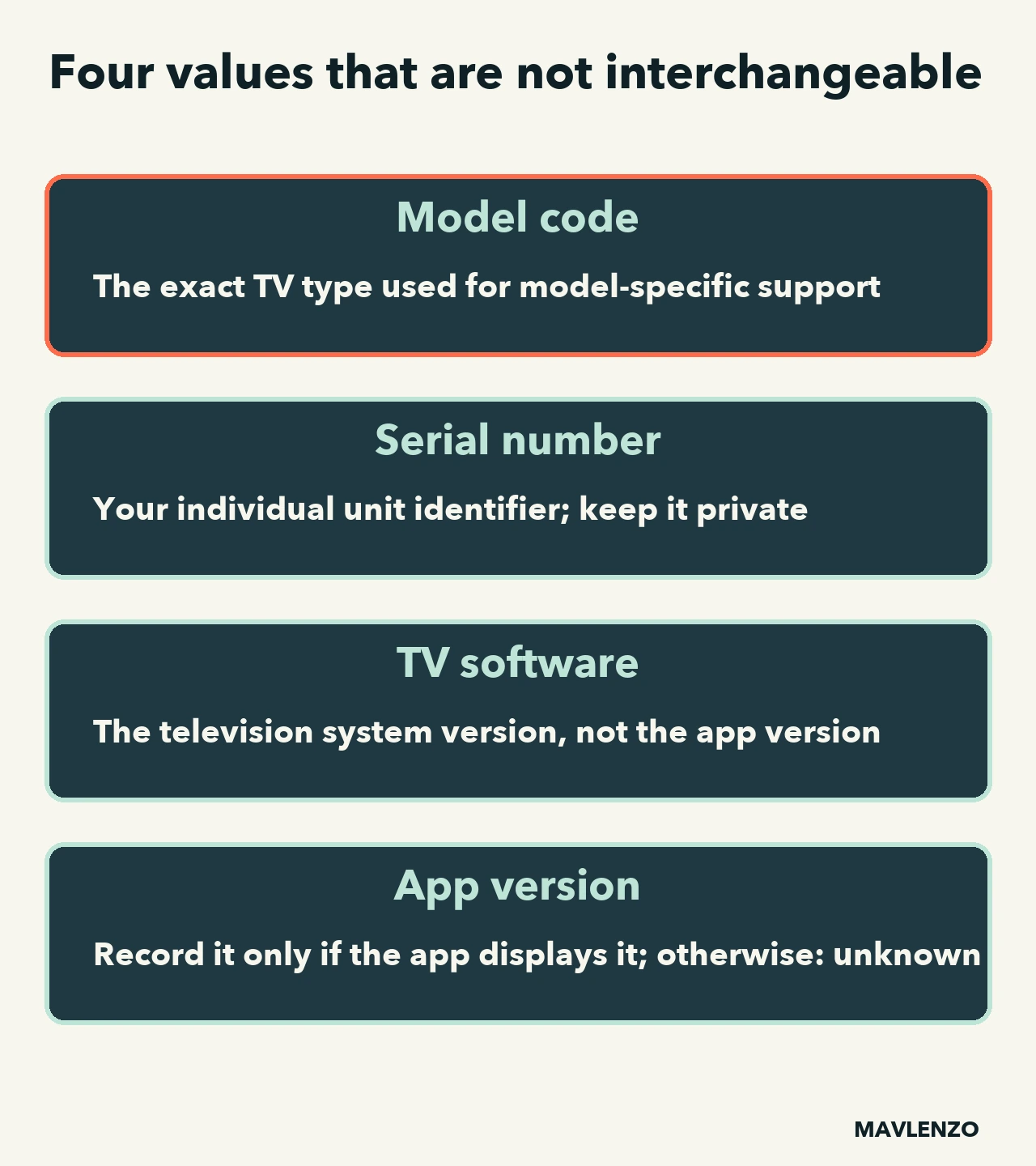
| Value | Use | Privacy |
|---|---|---|
| Model code | Open model-specific support and check compatibility. | Can be shared with support. |
| Serial number | Identify your individual unit. | Redact it from a public screenshot. |
| TV software | Compare the television system state with Samsung information. | Can be recorded without account data. |
| App version | Optional context only when the app displays it in Help or About. | Otherwise record “unknown”; no universal Samsung path is verified here. |
Find the model code and serial number
For newer models, Samsung Canada gives Settings → All Settings → Support → About This TV. On older sets, look under Settings → Support → About This TV or “Contact Samsung.” The rear label is another source when the screen is unavailable.
The model code is shared by units of the same model; the serial number is unique to your unit. Photograph the label for your private records if needed, but crop or redact the serial before sharing anything publicly.
Why the Canadian suffix matters
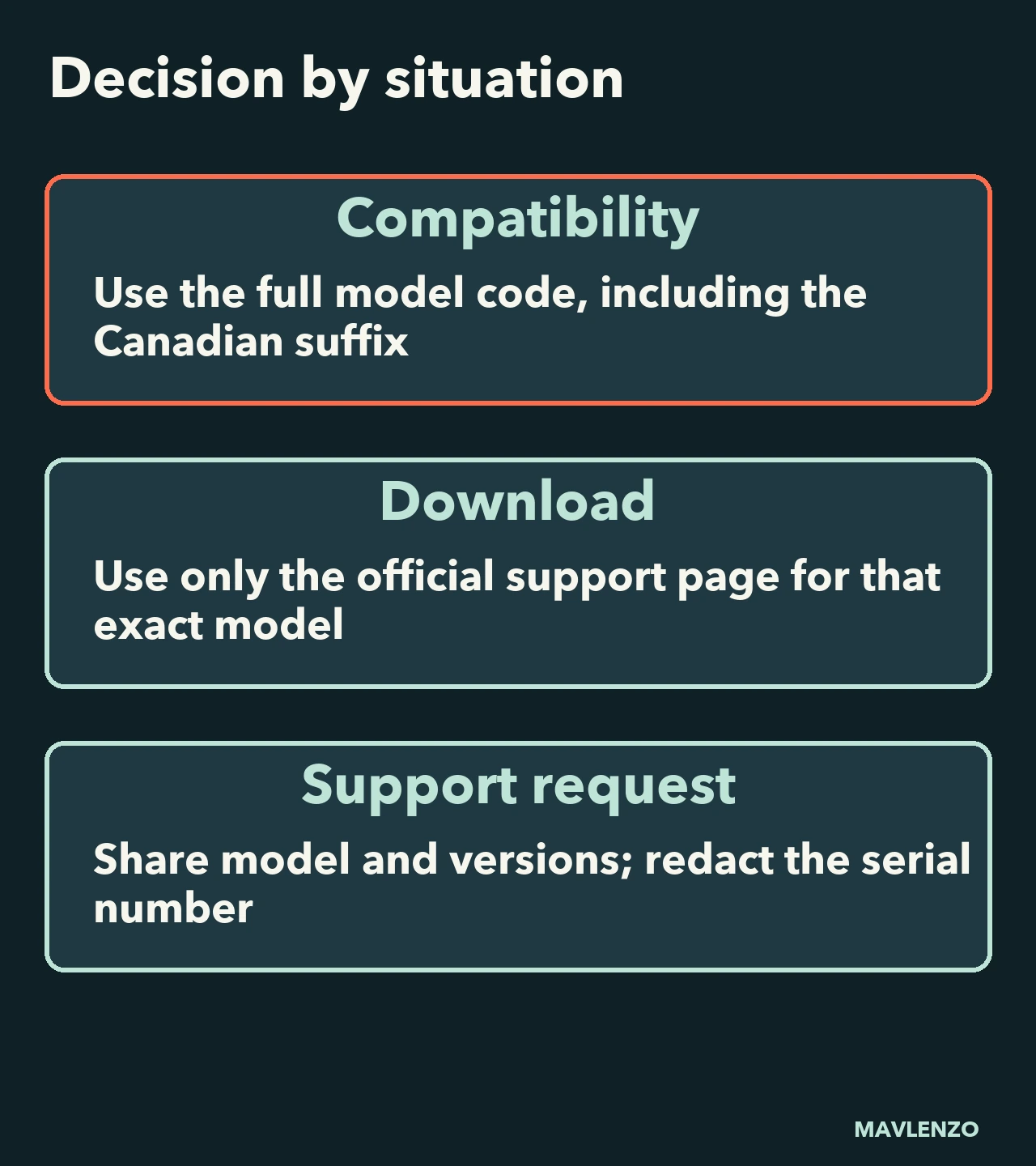
Samsung’s model-code page identifies ZC as the Canadian destination code and ZA as the United States destination code. Use the complete code shown by the TV: do not replace its suffix or download a file merely because the beginning looks similar.
Before a download or support request
- Copy the complete model code from About This TV or the rear label.
- Record the TV software. If the app displays its own version in Help or About, record it separately; otherwise write “unknown” and consult that app provider’s official help.
- Open the Samsung Canada Download Center, select the product type and use its model-code help when needed.
- Read that model page before using USB media; Samsung warns not to turn the television off during an update.
- If the model is not recognized in Canada, stop and ask Samsung support before using a file from another market.
A “newer” version found elsewhere is not automatically compatible. Samsung says updates and functions can vary by model and software.
Watch the worksheet
The original animation shows how to classify the four values and what to redact. It is schematic: it contains no real menu, serial number or customer television.
Transcript
- Before a download identify the exact television
- Open About This TV Settings > Support, depending on model
- Copy the full model code the ZC suffix indicates Canada
- Do not confuse the serial number it identifies your individual unit
- Record versions separately TV software and application
- Redact the serial number and use Samsung Canada support
Sources and limits
On November 6, 2026, we checked Samsung Canada’s pages for finding the model and serial, deciphering a model code, and updating TV software. Always recheck your exact model page before acting.
Continue with Samsung TV app not working: what to check before a reset, then our device guides. Mavlenzo is not affiliated with Samsung and does not guarantee a file’s compatibility.